


Salesforce Inspector Reloaded is a powerful browser designed to improve functionality and productivity for Salesforce administrators, developers and users. It builds on the original Salesforce Inspector extension’s functionality and provides tools and utilities that make it easier to interact with your Salesforce environment.
Salesforce Inspector Reloaded makes it easy to perform tasks such as viewing and editing object records, querying data using Salesforce Object Query Language (SOQL), and inspecting metadata components.
It provides an easy-to-use interface that seamlessly integrates with your web browser, allowing you to navigate and manage your Salesforce data and settings more efficiently.
Key Features of Salesforce Inspector Reloaded
1. Objects
Salesforce Inspector Reloaded is a versatile Chrome extension that adds a wealth of functionality to your Salesforce experience. One of its standout features is its robust “Object” functionality, which offers an array of tools and insights for working with Salesforce objects.
With the Object functionality in Salesforce Inspector Reloaded, users can easily explore and understand the structure and configuration of objects in their Salesforce org.
This can be particularly useful for administrators, developers, and analysts who need to analyze and work with object-related metadata for various tasks, such as data modelling, customization, and troubleshooting.
2. User Management
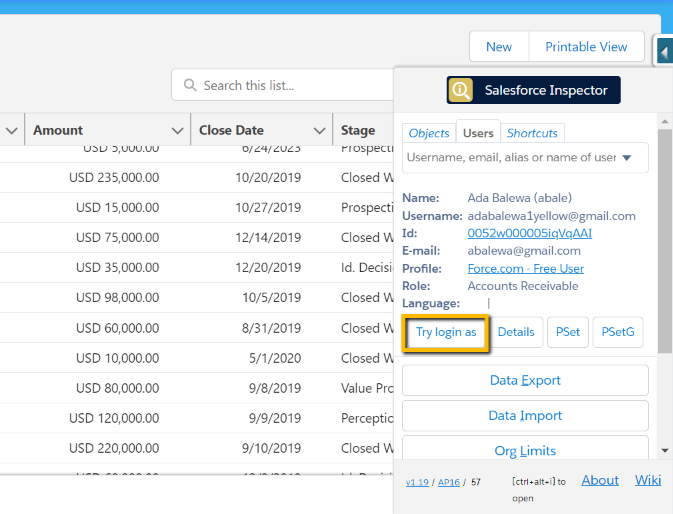
To debug the functionality or to test the feature by logging in as another user. It can be done in just a few clicks by simply searching by username or email.
Click on Try Login As to log in as a respective user.
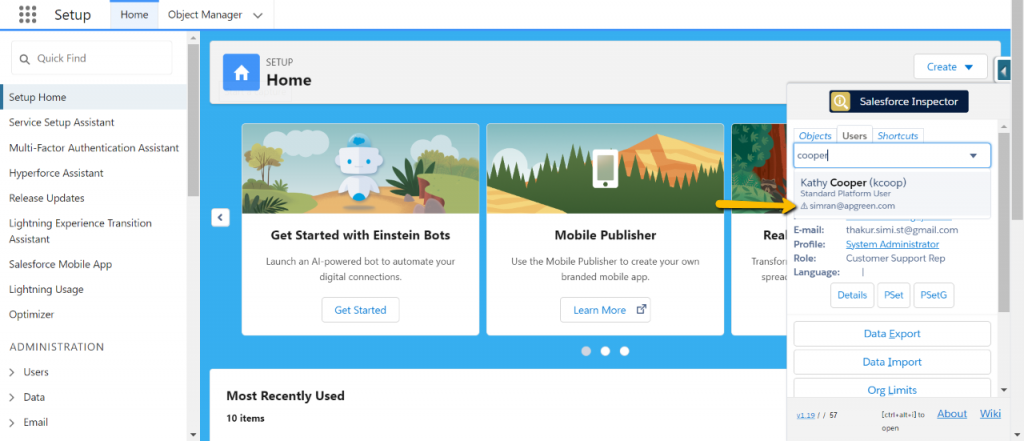
Salesforce Inspector does indeed show inactive users, but it marks them with an inactive sign when you search for their usernames in the search bar.
For inactive users, you will be able to see their details and permission set, as well as perform actions related to permission set groups. However, other actions may not be available for inactive users.
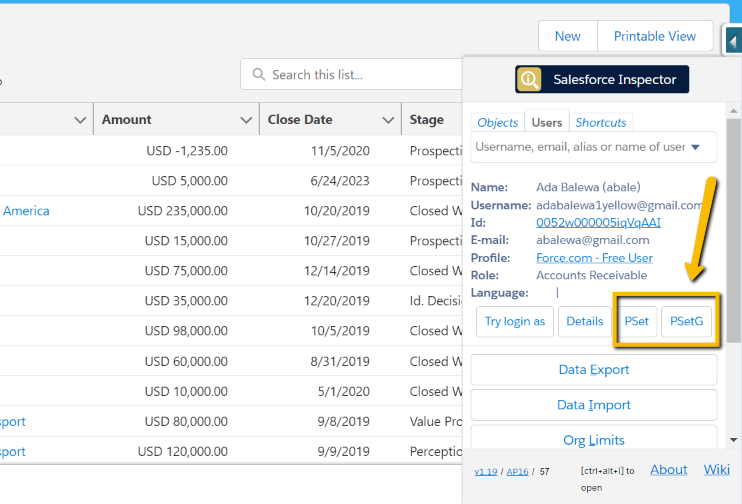
With the username Salesforce Inspector extension, Users don’t need to navigate to permission set and permission set groups through setup. By Salesforce Extension, users can directly add respective permission sets in permission sets and permission set groups.
3. Shortcuts
Shortcuts in Salesforce Inspector Reloaded are your secret weapon for navigating the Salesforce environment swiftly and effortlessly. They are custom, one-click commands that can execute a variety of tasks within your Salesforce org.
Whether you’re a Salesforce admin, developer, or user, these shortcuts are designed to simplify your daily workflow. With the Shortcuts tab, now we can search flows, settings, permission sets, profiles, and more.
In a world where every second counts, Salesforce Inspector Reloaded’s Shortcuts feature empowers you to become a Salesforce superhero. Say goodbye to tedious clicks and manual processes and hello to a more efficient, productive, and error-free Shortcut feature

Want To Learn Salesforce Flows? Checkout our Salesforce Flow Course
4. Data Import and Export
Data Export in Salesforce Inspector lets you export the data, by query editor where you can write SOQL query and hit the Export button. It works similarly to what we do in the Developer Console or Workbench.
This extension with the updated version lets you save the Query with a specific label, to use frequently by just searching the Query.
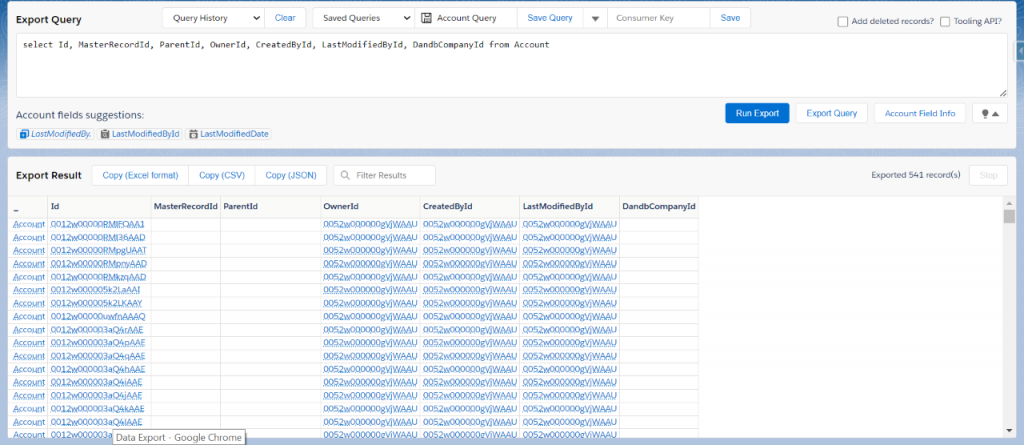
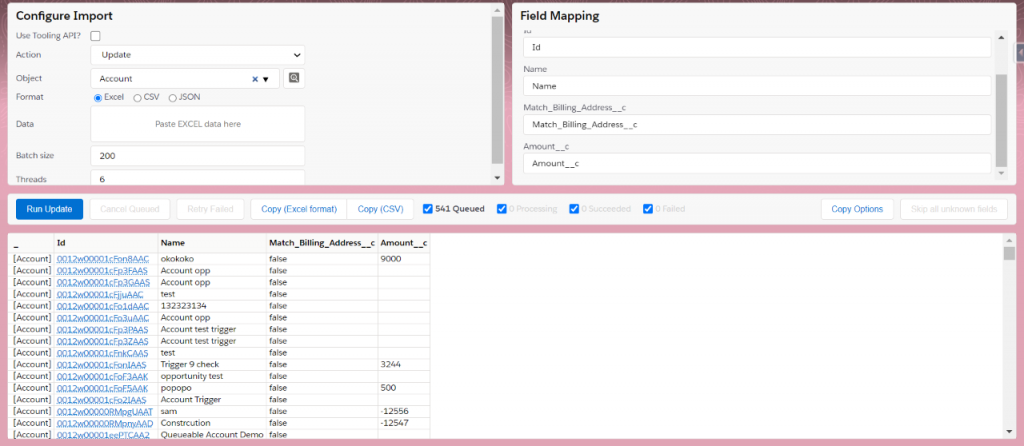
Data Import is updated with a Better UI design. It can be used to perform DML operations such as Insert, Update, Delete, and Upsert.
To import data, simply copy the data you want to import and paste it while selecting the respective object. The system will automatically map the fields, and if there’s no match, you have the option to skip it.”
5. Org Limits
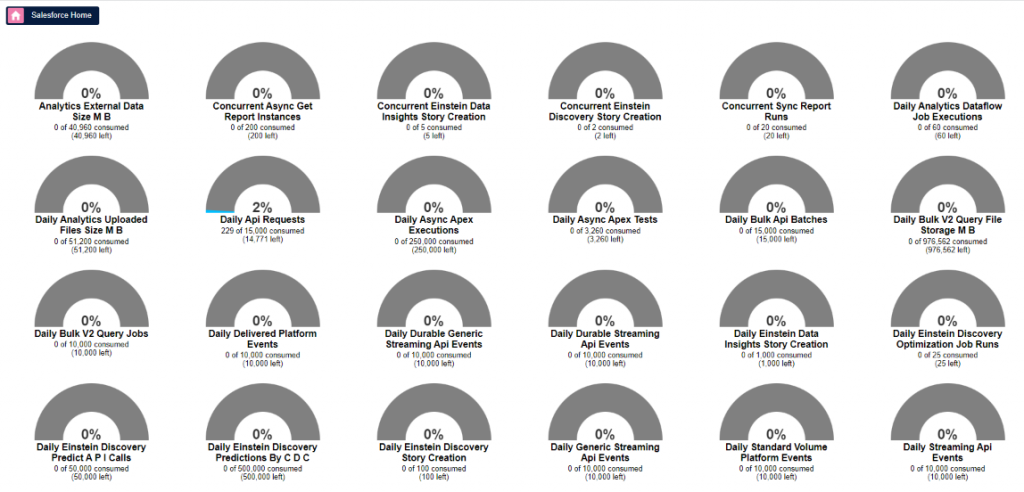
The Org Limits section in Salesforce Inspector Reloaded provides a comprehensive list of governor limits for different aspects of the org, such as daily API calls, file storage, workflow rules, and more.
Users can easily access this information to understand the current limits set for their org and track the usage against those limits.
With the Org Limits functionality, users can quickly check and analyze the limits to ensure they are not exceeding any thresholds in their org. This can help prevent any potential issues or disruptions due to surpassing governor limits.
Please note that Salesforce Inspector Reloaded does not provide the capability to modify or increase the limits. It serves as a tool for monitoring and staying informed about the governor limits in your Salesforce environment.
6. Download Metadata
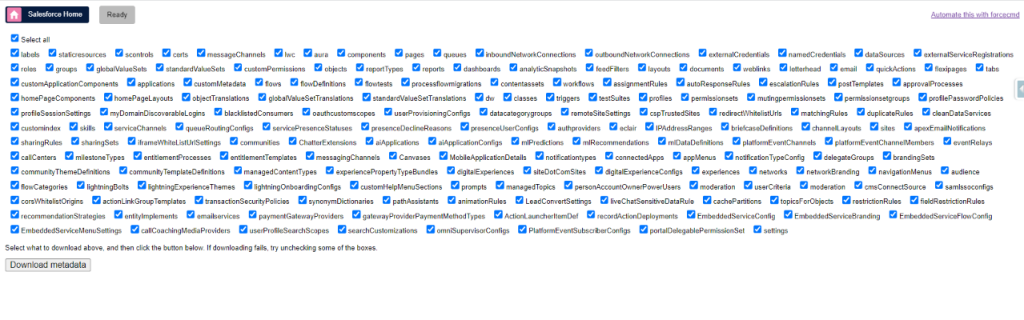
The Salesforce Inspector Reloaded extension provides a convenient way to download metadata from your Salesforce org. This feature allows you to easily access and analyze the metadata of your Salesforce org without the need for manual extraction or additional tools.
Using “Download Metadata” is straightforward. Simply select the specific metadata components you want to download and Salesforce Inspector Reloaded will create a downloadable ZIP file containing all the selected metadata.
It’s a time-saving and convenient way to maintain control over your Salesforce org’s setup.
Whether you’re an administrator looking to safeguard your configurations, a developer diving into custom code, or simply someone who values a comprehensive overview of their Salesforce org, the “Download Metadata” functionality in Salesforce Inspector Reloaded is an indispensable feature that streamlines your workflow and enhances your Salesforce management capabilities.
How to install Salesforce Inspector Reloaded?
To avoid any conflicts or compatibility issues between the two extensions, remove the existing Salesforce Inspector extension before installing Salesforce Inspector Reloaded.
Here’s how you can do it:
- Open your browser.
- Go to the browser’s extensions or add-ons management page. The location may vary depending on your browser:
- Enter chrome://extensions in the address bar.
- Look for the Salesforce Inspector extension in the list of installed extensions.
- Click on the options to remove or uninstall the Salesforce Inspector extension. Confirm the action if prompted.
- Once the extension has been successfully removed, you can proceed with installing Salesforce Inspector Reloaded by following the installation instructions provided below.
To install the Salesforce Inspector Reloaded extension
- Search Salesforce Inspector Reloaded in the search bar of Google Chrome.

2. Click on Salesforce Inspector Reloaded which will redirect you to the Chrome webstore page.
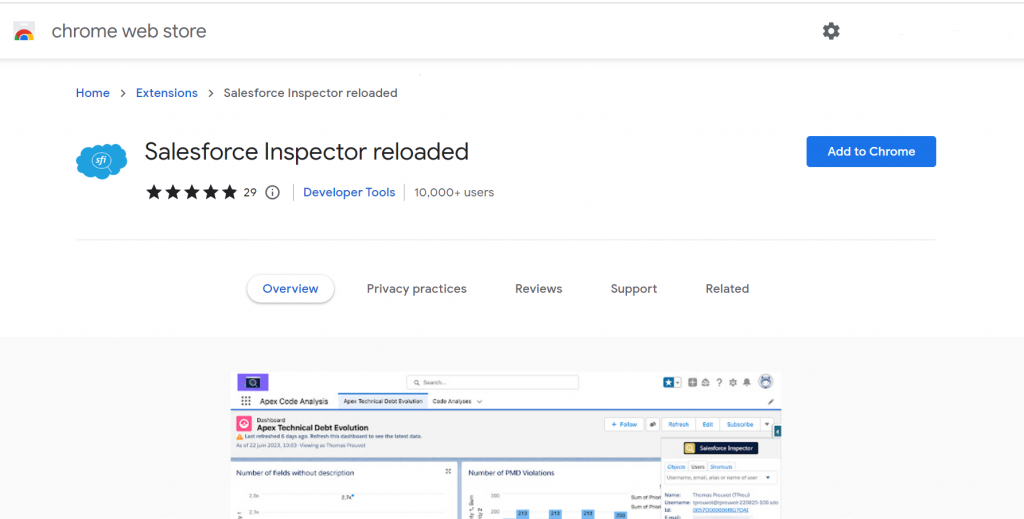
3. Select the Add to Chrome action, and a confirmation dialogue box appears.

4. After you select ‘Add Extension,’ Salesforce Inspector adds itself to your Chrome and becomes ready for use.
In addition to these cool features, what’s best about this extension is that you can use it in every org without the need for separate authentication for each individual org.”
Conclusion:
Salesforce Inspector Reloaded is a must-have tool for Salesforce professionals, offering a range of features that enhance productivity and efficiency. Whether you’re an administrator, developer, or user.
Salesforce Inspector Extension can help you interact with your Salesforce environment more effectively, making your Salesforce journey smoother and more productive.