

Agentforce Builder in Salesforce is meant for getting actual work done, not just showing off AI. It helps teams use autonomous agents in a way that stays predictable, secure, and manageable for admins.
If you’ve been hearing about Agentforce and autonomous agents and wondering how they’re actually built inside a Salesforce org, this blog walks through that step by step. We’ll cover the basics first and then look at how Agentforce Builder works in real setups.
What is Agentforce?
Agentforce is Salesforce’s way of bringing AI agents directly into everyday business workflows. These aren’t bots that just reply with text. Agentforce agents can understand what someone is asking, decide what needs to happen next, and then actually do something — like triggering a flow, fetching records, or summarizing data.
Learn More: What is Agentforce in Salesforce?
A quick look at autonomous agents
Autonomous agents work toward a goal instead of following a fixed script. Traditional bots rely on keywords and predefined paths, but autonomous agents don’t operate that way.
They decide the steps needed to reach an objective, adapt when the conversation changes, ask for more information when required, and trigger actions when it’s time to move forward.
Autonomous agents work well for things like:
- Scheduling and follow-ups
- Case resolution and escalation
- Internal helpdesk requests
- Sales and service assistance
They don’t replace humans. They remove the repetitive work humans shouldn’t be doing in the first place.
Now here’s the catch.
Raw autonomous AI is powerful, but it’s also risky without control. And that’s exactly why Agentforce Builder exists.
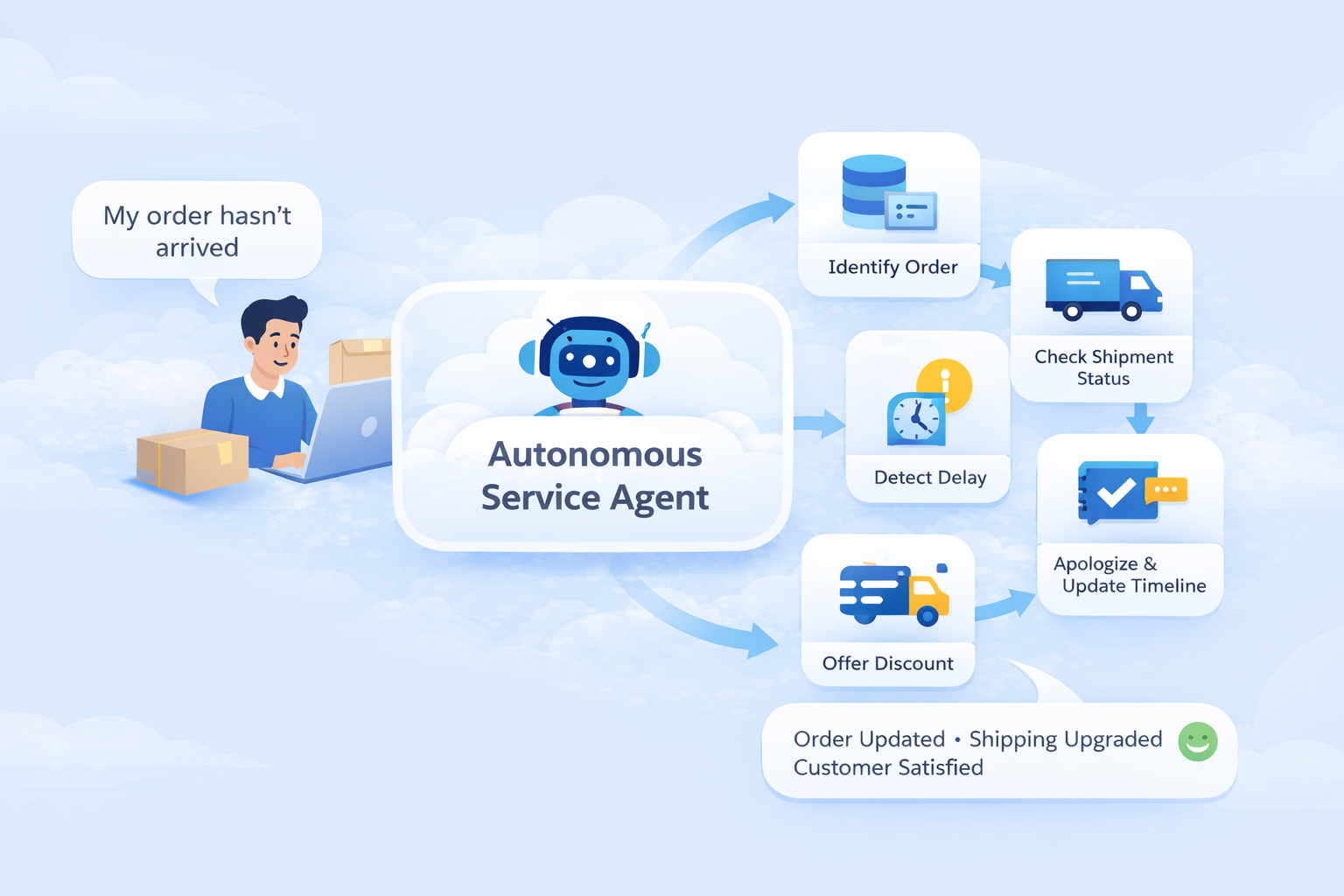
Example: Customer Support (Service)
Why did Salesforce introduce Agentforce Builder?
Most admins aren’t stuck because they lack ideas. The real challenge is trust. Questions like who controls what the agent can access, how to prevent it from taking the wrong action, and how to test it safely before users ever interact with it come up quickly. That’s where Agentforce Builder comes in. It gives admins the tools to manage, test, and deploy AI in a controlled and safe way. Instead of AI feeling unpredictable, it becomes something you can confidently build and govern.
Getting to Agentforce Builder
Agentforce Builder is launched directly from Salesforce Setup. There’s no separate console and no new tool to learn.
From Setup, search for Agentforce Agents. You can open an existing agent or create a new one.
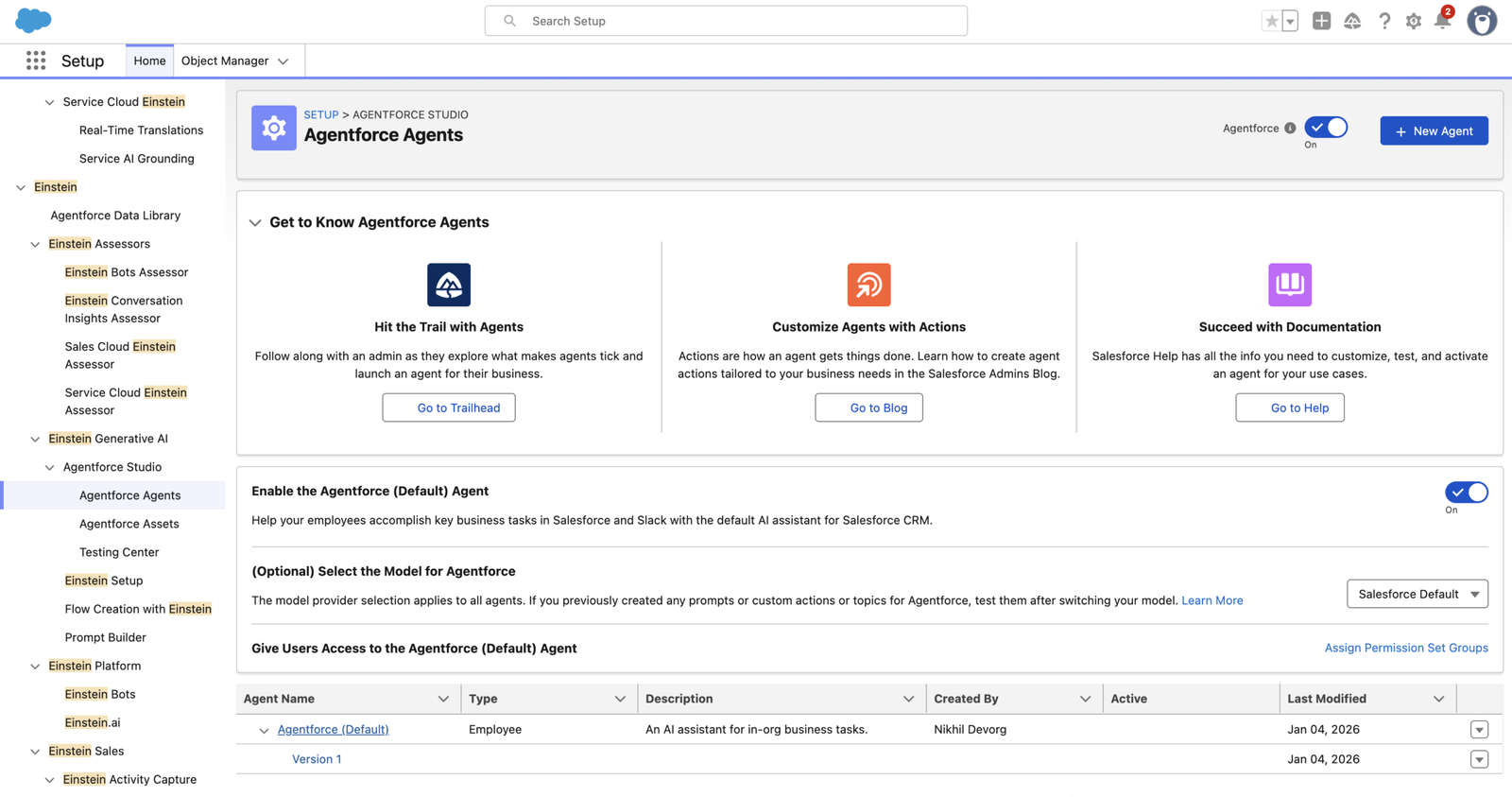
Clicking Open in Builder launches the Agentforce Builder workspace.
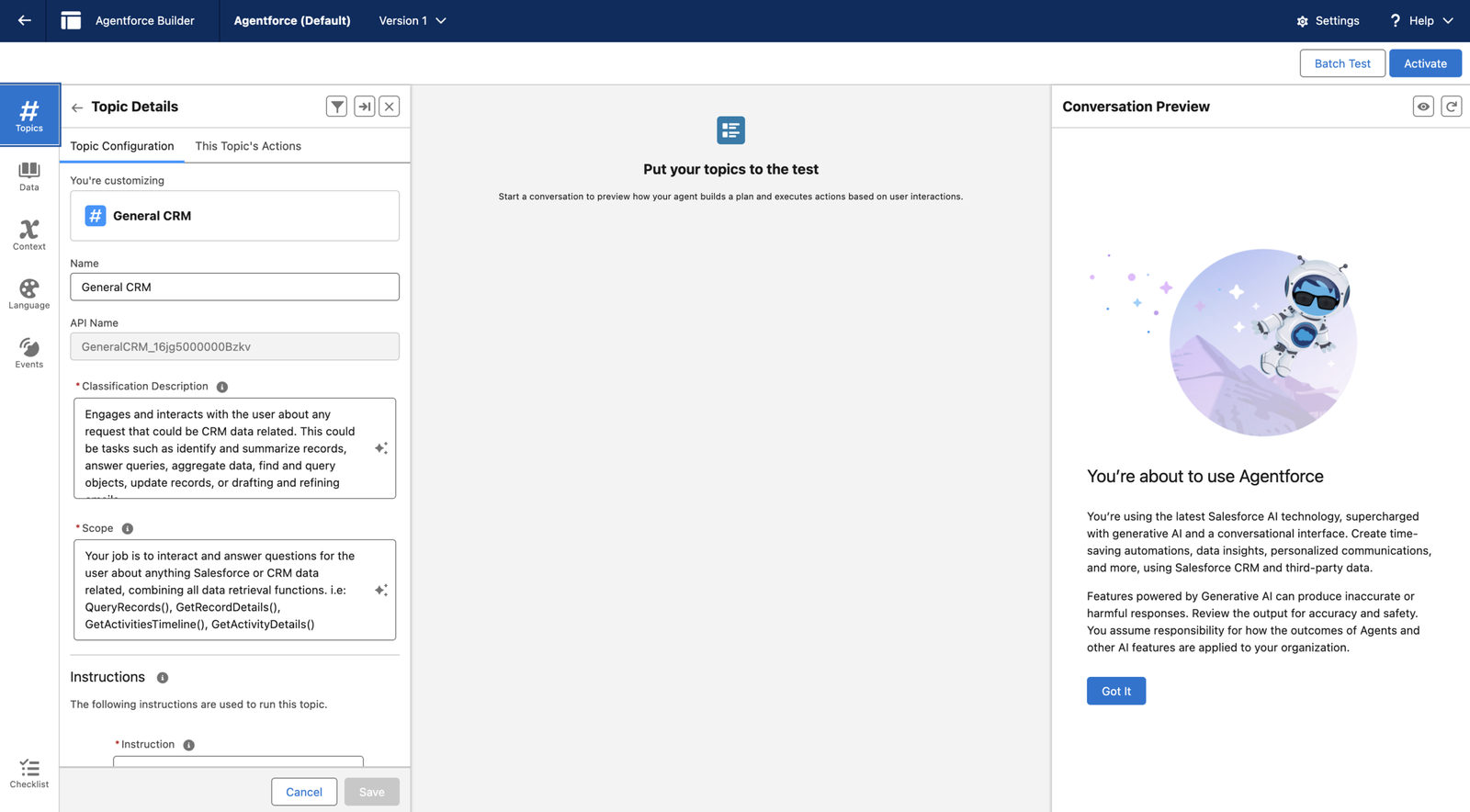
And this is where the design choice becomes obvious. Everything lives on one screen.
When you open Agentforce Builder, everything is out in the open. Configuration sits on the left, reasoning is visible in the center, and testing happens right alongside it.
That layout is intentional. Salesforce is clearly saying one thing: if an agent is going to make decisions, admins should be able to see exactly how those decisions are made.
Agentforce Builder is a single workspace made up of clearly defined sections. Each one exists to solve a specific control or trust concern.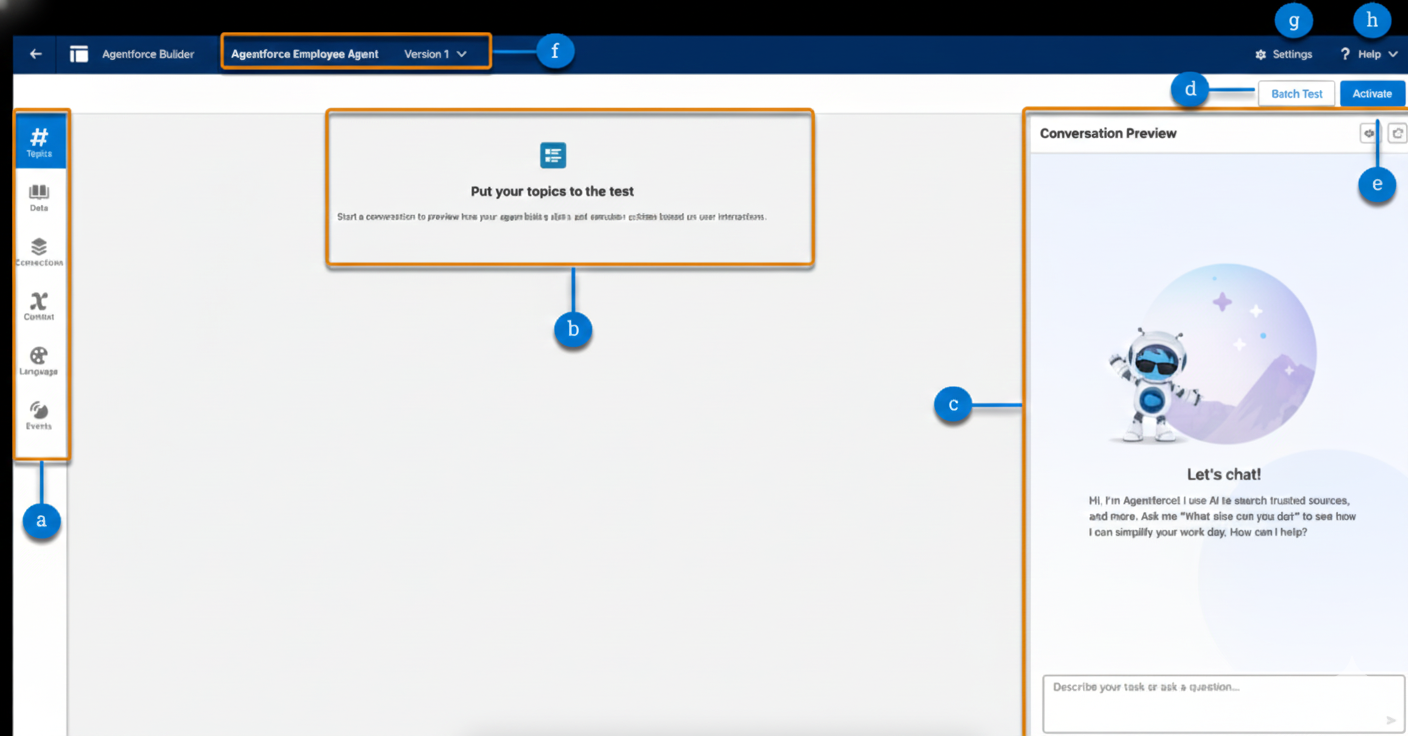
(a) Navigation Sidebar
This is where an agent’s boundaries are defined. From the navigation sidebar, you control:
- What topics can the agent handle
- Which actions are allowed to execute
- What data can be referenced
- Which channels can operate in
- Language settings and event logs

If an agent ever behaves unexpectedly, this is the first place admins check.
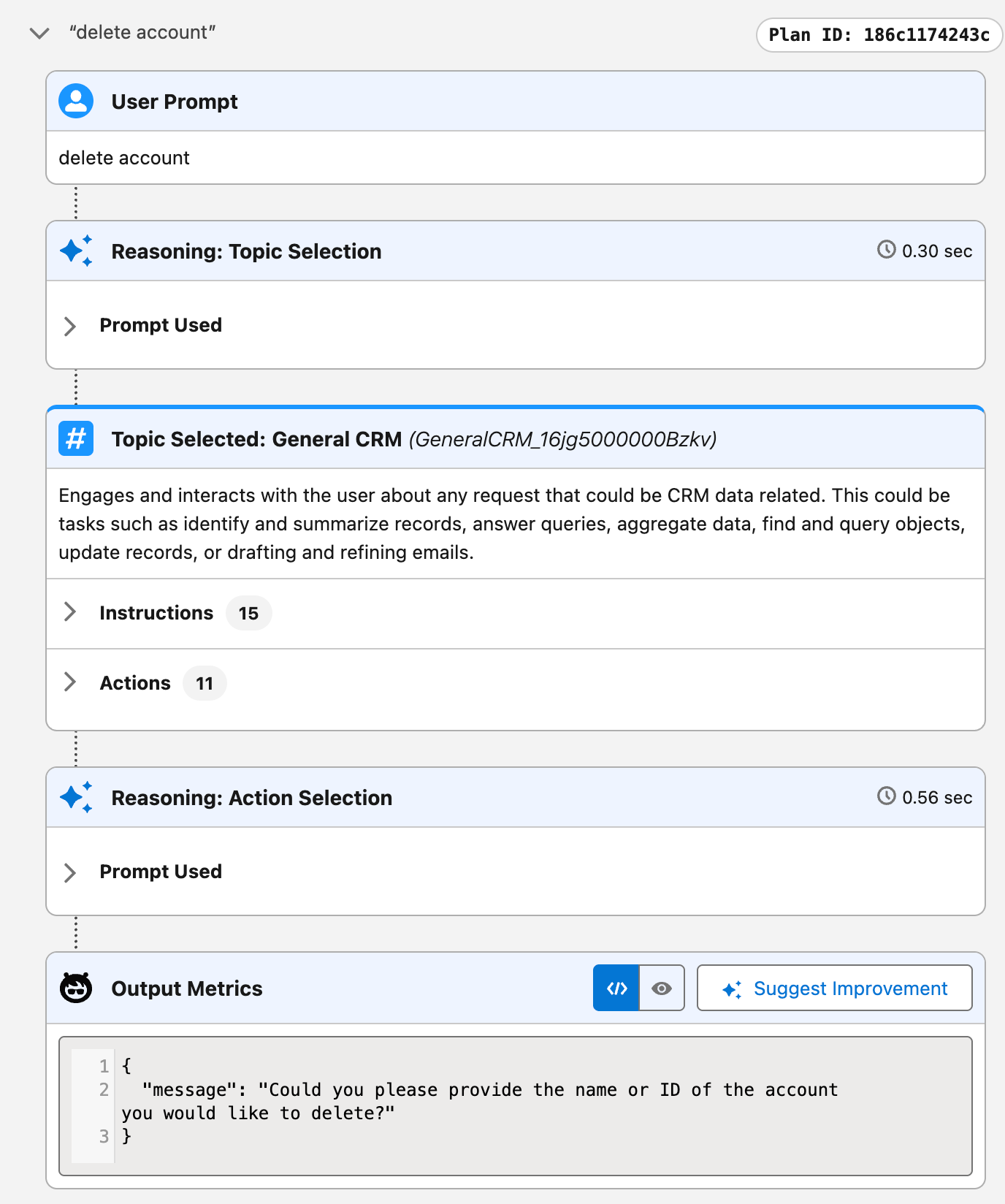
(b) Plan Canvas
The plan canvas answers a simple question: why did the agent respond this way?
When you test a conversation, the canvas shows:
- The topic selected
- The reasoning path
- The prompt used
- The action executed
- The final response
Nothing is hidden behind the scenes. You can trace every decision step by step.
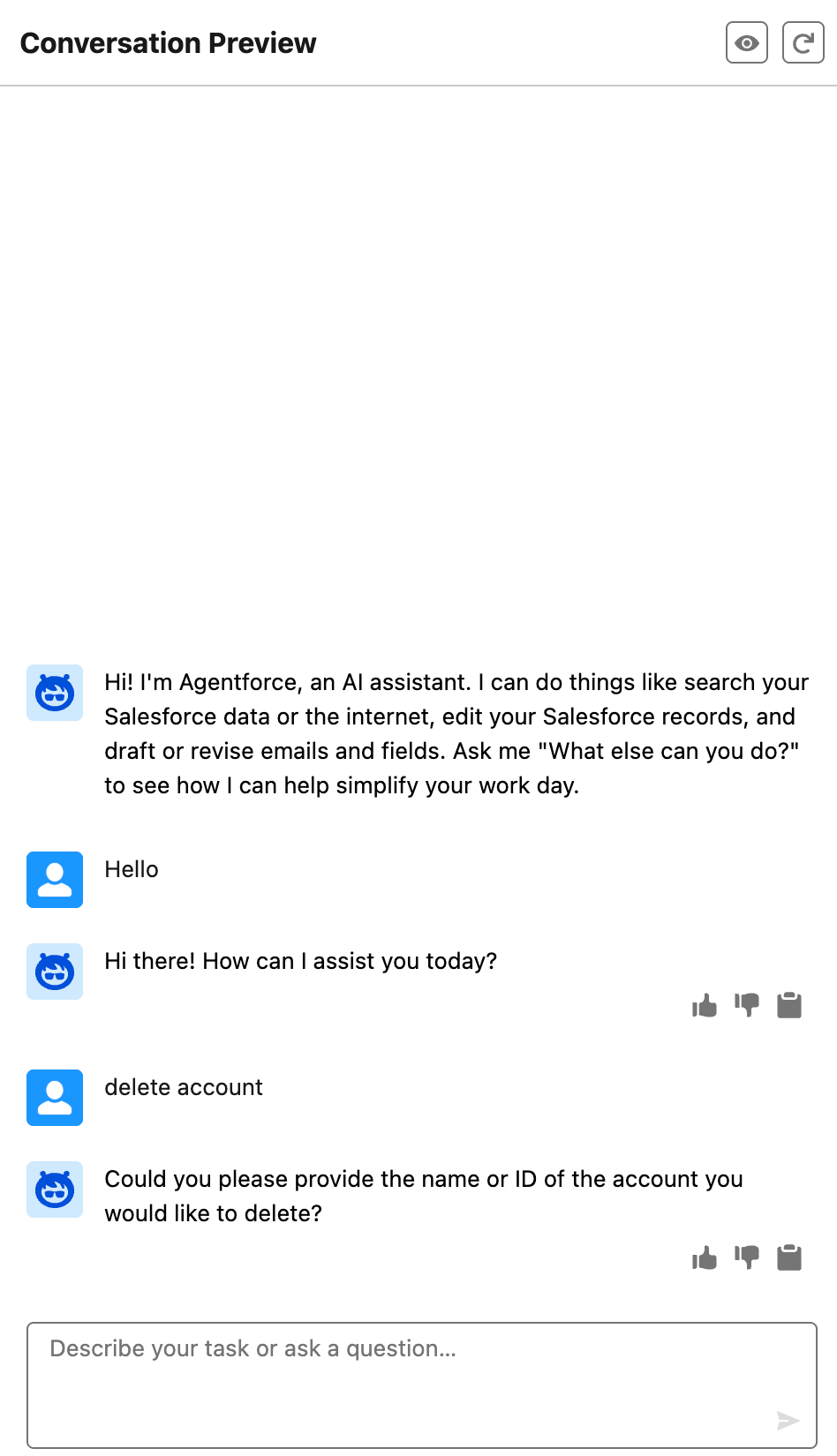
(c) Conversation Preview Panel
This panel lets you interact with the agent the same way a real user would. You can ask normal questions, try edge cases, or even give incomplete or confusing inputs.
You can also tweak the preview conditions to simulate different scenarios, then refresh the conversation and test everything again from a clean slate.
(d) Batch Testing
Manual testing is helpful, but it has its limits. Batch testing lets admins validate multiple topics and scenarios in one go. This becomes especially valuable when an agent handles several workflows or deals with high-volume interactions.
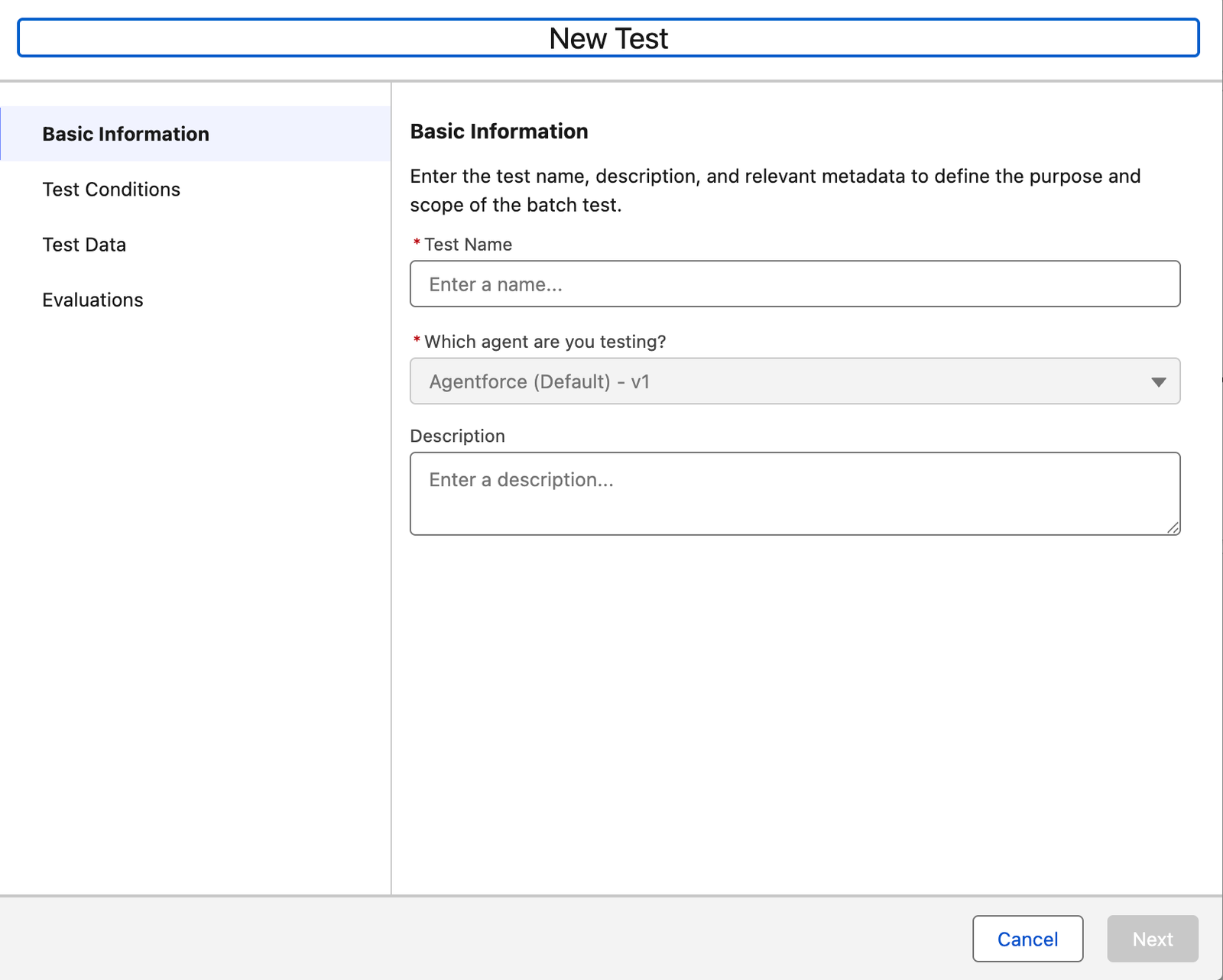
It’s less about perfection and more about consistency.
(e) Activate and Deactivate
Once everything looks good, you activate the agent. If you need to make changes later, you first deactivate it, apply your updates, and then reactivate it. That extra step is intentional. It helps prevent accidental changes from reaching users.
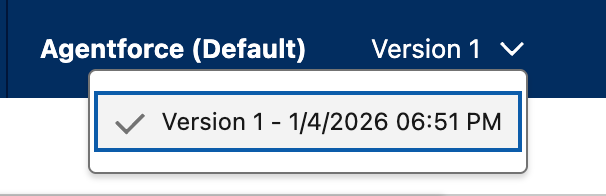
(f) Agent Name and Version
This section shows the agent’s current version. Versioning becomes important as agents grow and change over time.
It allows teams to make updates safely, compare what’s changed, and move forward without losing earlier configurations.
(g) Settings
Settings are where you manage agent details like name, role, and description. In orgs with multiple agents, this clarity saves time later.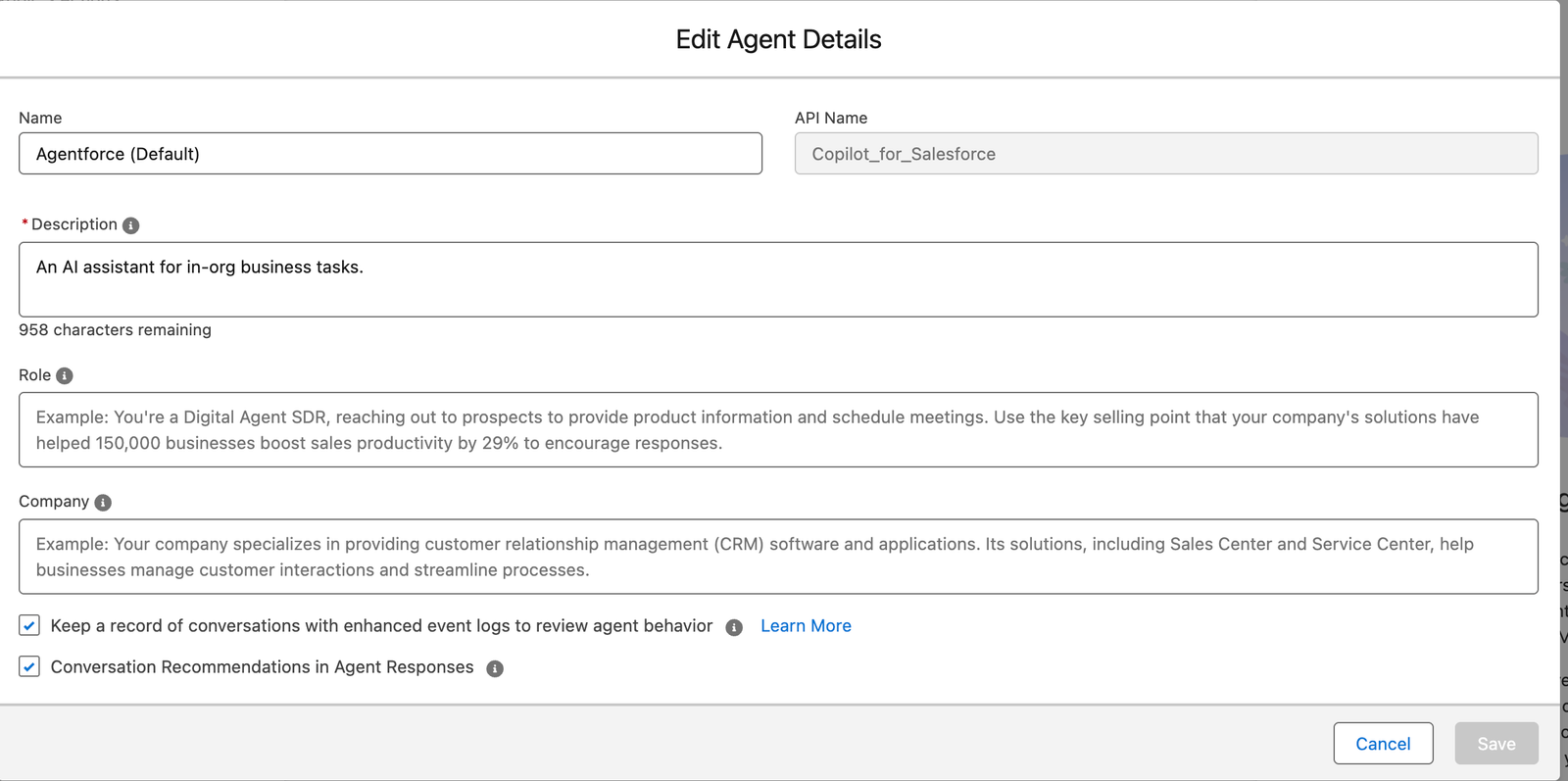
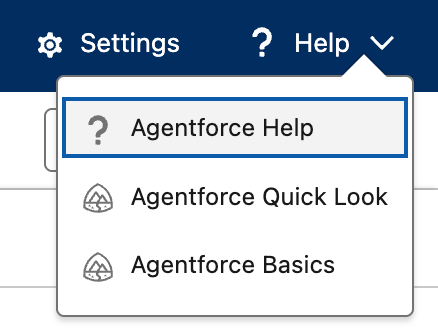
(h) Help Panel
The help panel provides quick access to Salesforce Help and Trailhead content in a new tab.
How Agentforce Builder Keeps Agents Under Control?
Autonomous agents are supposed to be powerful. That’s why teams are interested in them in the first place.
The real question is what happens when that power isn’t kept in check.
Agentforce Builder doesn’t treat agents like special entities that can do anything. Every agent runs as a defined agent user. Permissions apply the same way they do for humans. If an agent doesn’t have access to a record, field, or object, it can’t touch it.
Topics and actions tighten things further. An agent can only respond to topics you allow, and it can only perform actions you approve. There’s no free-roaming AI making decisions on its own.
That constraint is intentional. Without it, autonomy becomes a liability instead of a feature.
Testing Before Anything Goes Live
Testing isn’t something you “get to later” with Agentforce Builder.
Before an agent is activated, admins can run conversation previews, see how requests are interpreted, and inspect the reasoning shown in the plan canvas. If the response doesn’t feel right, it gets adjusted before anyone else ever sees it.
Batch testing adds another safety net. Instead of checking one happy path, you can see how the agent behaves across multiple scenarios.
Nothing reaches end users until it behaves the way you expect. That’s not optional. It’s built in.
Monitoring Agents After Deployment
Going live doesn’t mean you stop paying attention.
Once agents are active, event logs track how they behave in real conversations. Over time, those logs give admins clear signals about what’s working and what isn’t.
Teams use them to:
-
fine-tune topic instructions
-
adjust or restrict actions
-
gradually expand responsibilities
The improvement cycle stays controlled. Changes are based on actual usage, not guesswork.
Where Teams Use Agentforce Builder Today
Agentforce Builder isn’t tied to one role or team. In practice, teams are using agents for very different jobs:
-
Employees rely on them to summarize records or answer internal questions
-
Support teams handle repetitive issues faster
-
Sales teams qualify leads and schedule meetings
-
IT and HR teams cut down routine back-and-forth
Standard Agents vs Custom Agents
Standard agents are usually enough to get started. They cover common scenarios and come preconfigured.
Custom agents make sense when workflows don’t quite fit the defaults. With Agentforce Builder, building one doesn’t require writing code. You define what the agent should do, configure topics and actions, test the behavior, and then deploy.
Also Read – ContentDocument and ContentVersion in Flows | Spring ’26
FAQs
1. How is Agentforce Builder different from Salesforce chatbots?
Chatbots follow scripts. Agentforce agents can reason and take actions. They can trigger flows, call Apex, and respond to user input while still staying within admin-defined limits.
2. How do you test an agent built with Agentforce Builder?
Testing happens through conversation previews and the plan canvas. Admins can see how inputs are interpreted, which topics are selected, and which actions run before the agent is activated.
Conclusion
Agentforce Builder isn’t about letting AI run free. It’s about keeping control.
Admins can see exactly what an agent is allowed to do, understand why it responds the way it does, and decide when it’s ready for real users. Permissions, topics, actions, testing tools, and event logs all work together to keep autonomy useful without making it risky.
That’s why these agents don’t feel like black boxes. They behave like managed, predictable parts of a Salesforce org. If the goal is to move past basic automation while keeping governance intact, Agentforce Builder makes that possible.
Get a complete Roadmap To Learn Salesforce Admin and Development👇