

Spring ’26 finally makes file automation easier in Salesforce. With ContentDocument and ContentVersion, record-triggered flows can now react to file uploads directly, without writing Apex. If you’ve worked with files before, you know this was a gap for a long time.
Understanding ContentDocument and ContentVersion in Salesforce
If you dig into how Salesforce stores files, you’ll notice it doesn’t rely on a single record. That’s usually where the confusion starts. Files look simple in the UI, but under the hood, Salesforce keeps its identity and its versions separate.
The record that anchors everything is ContentDocument. This is the reference Salesforce holds onto, so it knows what the file is over time. Ownership, publishing state, and whether a file is archived all live there. That record doesn’t contain the file data itself, and it doesn’t change every time the file changes. It stays around so Salesforce can treat the file as one continuous thing instead of a collection of unrelated uploads.
The actual content is handled differently. Each state of the file is captured as a ContentVersion. That’s where the file body lives, along with details that only make sense at the version level, like size, language, ratings, and preview data.
Over time, several versions can exist side by side, all pointing back to the same document record.
Salesforce always links versions to their parent document and keeps track of which one is current. Older versions don’t disappear, but they stop being editable. The document record, meanwhile, continues to represent the file as a whole, regardless of how many versions exist behind it.
Once you see that split, a lot of Salesforce’s file behavior starts to feel intentional rather than confusing. One object exists to provide continuity. The other exists to record change. Together, they explain how Salesforce manages version history, sharing, and access without duplicating files or losing context.
What changed in the Salesforce Spring ’26 Release?
Before Spring ’26, file automation usually meant Apex triggers. Now, Salesforce allows record-triggered Flows on both:
- ContentDocument
- ContentVersion
That opens the door to simple, declarative automation for file events.
Example 1: ContentDocument flow in Salesforce
Let’s start with the easiest possible example. This flow proves that ContentDocument triggers correctly.
Use case
Whenever a new file is uploaded, create a Task.
Flow configuration
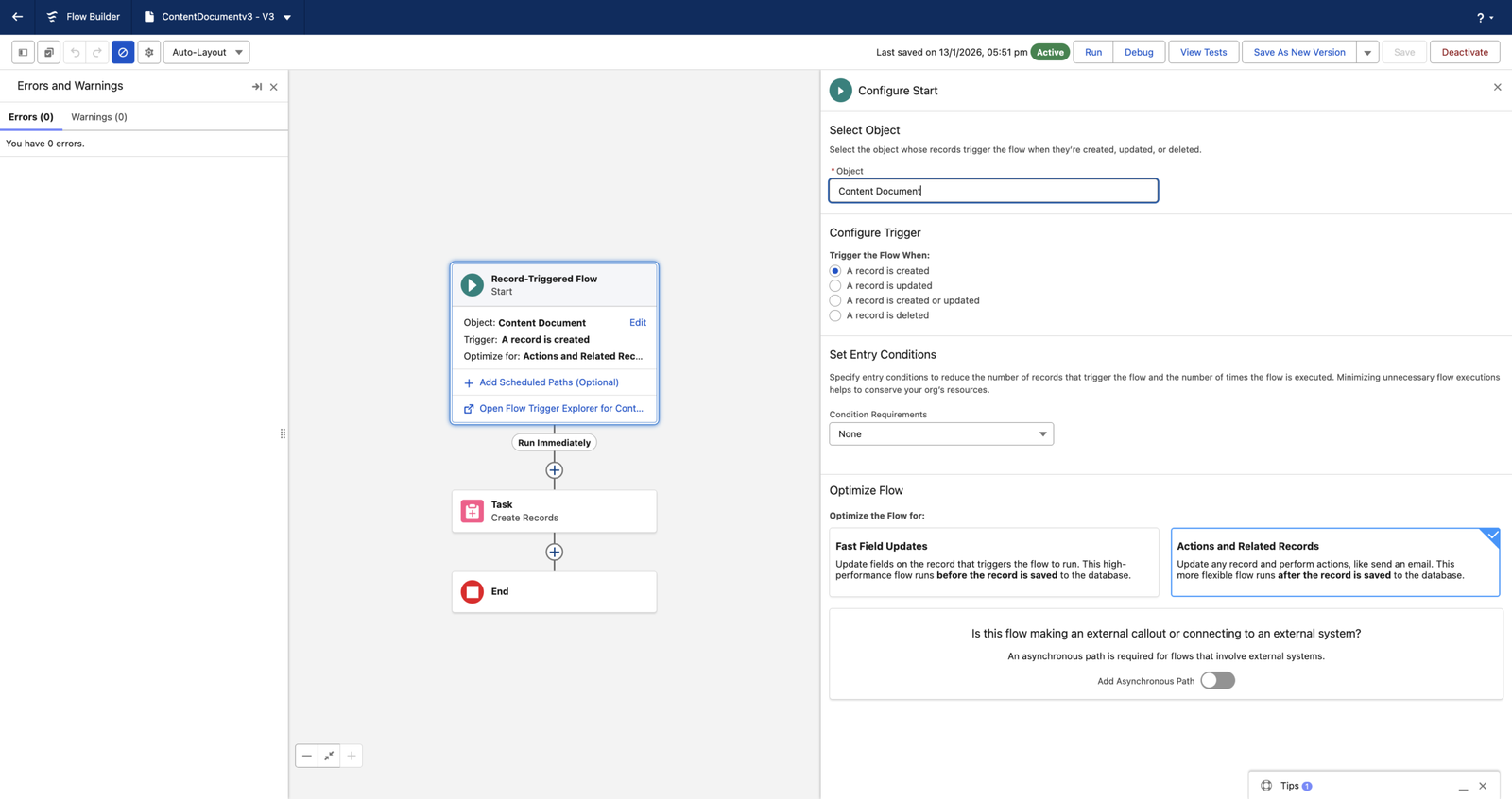
Start
- Object: ContentDocument
- Trigger: A record is created
- Entry conditions: None
- Optimize for: Actions and Related Records (After Save)
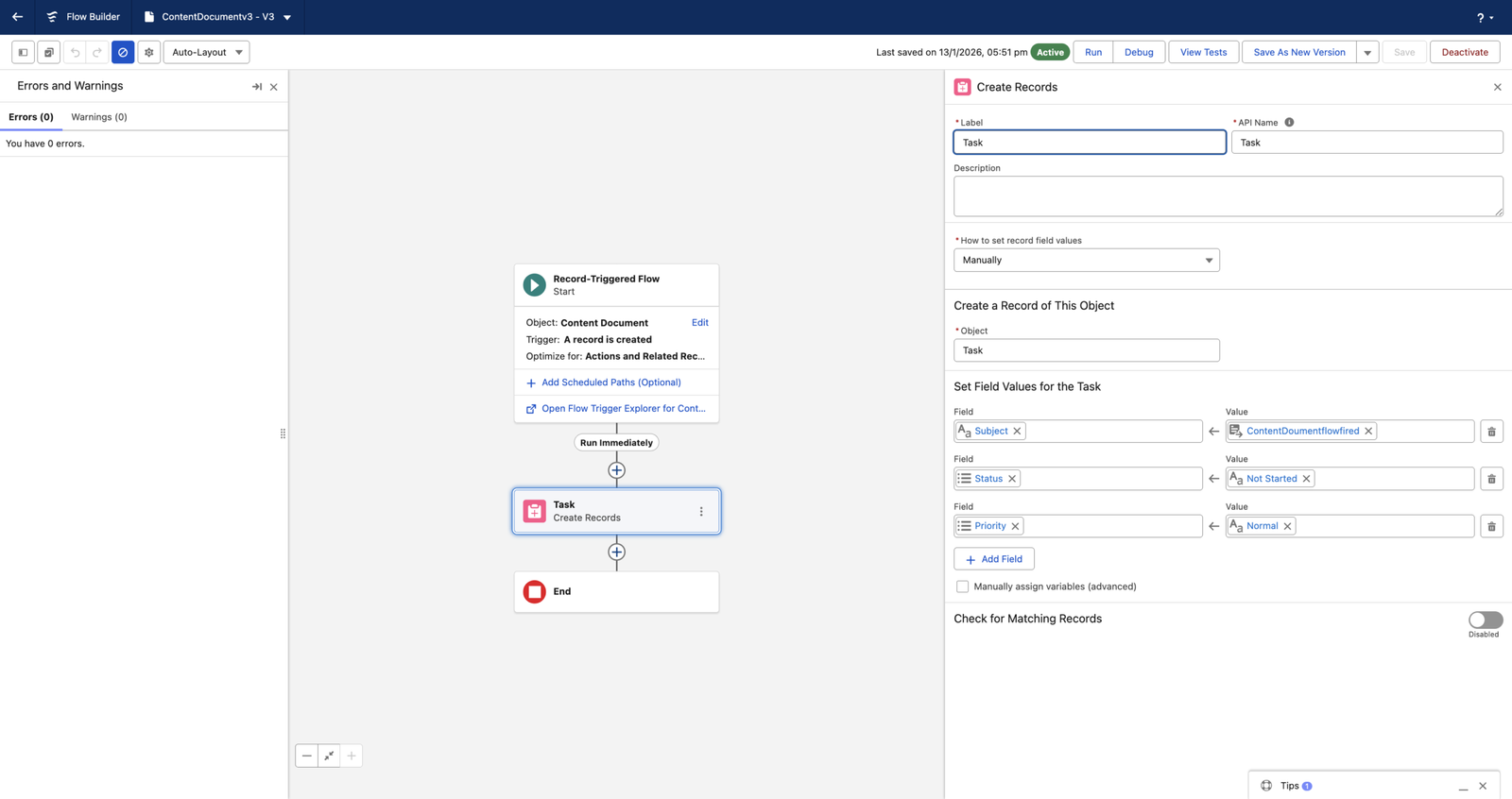
Action: Create Records
- Object: Task
- Subject: ContentDocumentflowfired
- Status: Not Started
- Priority: Normal
That’s it. No decisions. No lookups.
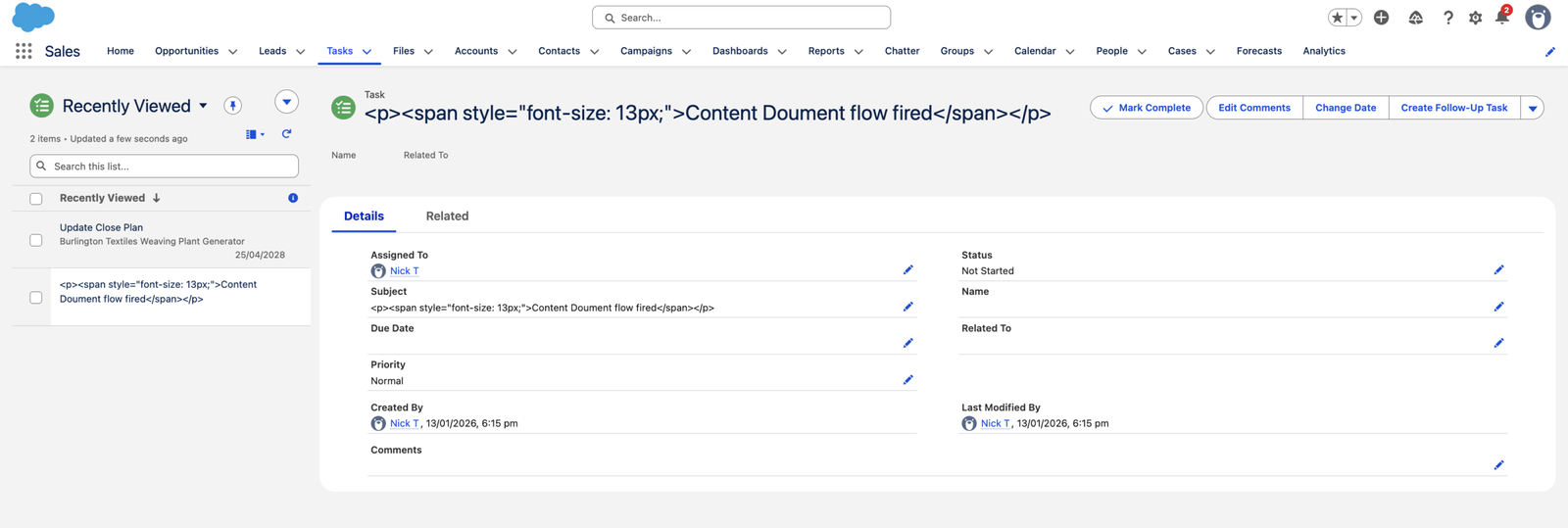
What happens when you test it
- Upload a brand-new file
- Salesforce creates a ContentDocument
- The flow runs
- A Task is created

If you upload a new version of an existing file, ContentDocument is not created again, so this flow does not run.
Example 2: ContentVersion flow in Salesforce
Now let’s look at ContentVersion. This flow reacts to every upload and every new version.
Use case
Whenever a new version file is uploaded, create a Task.
Flow configuration
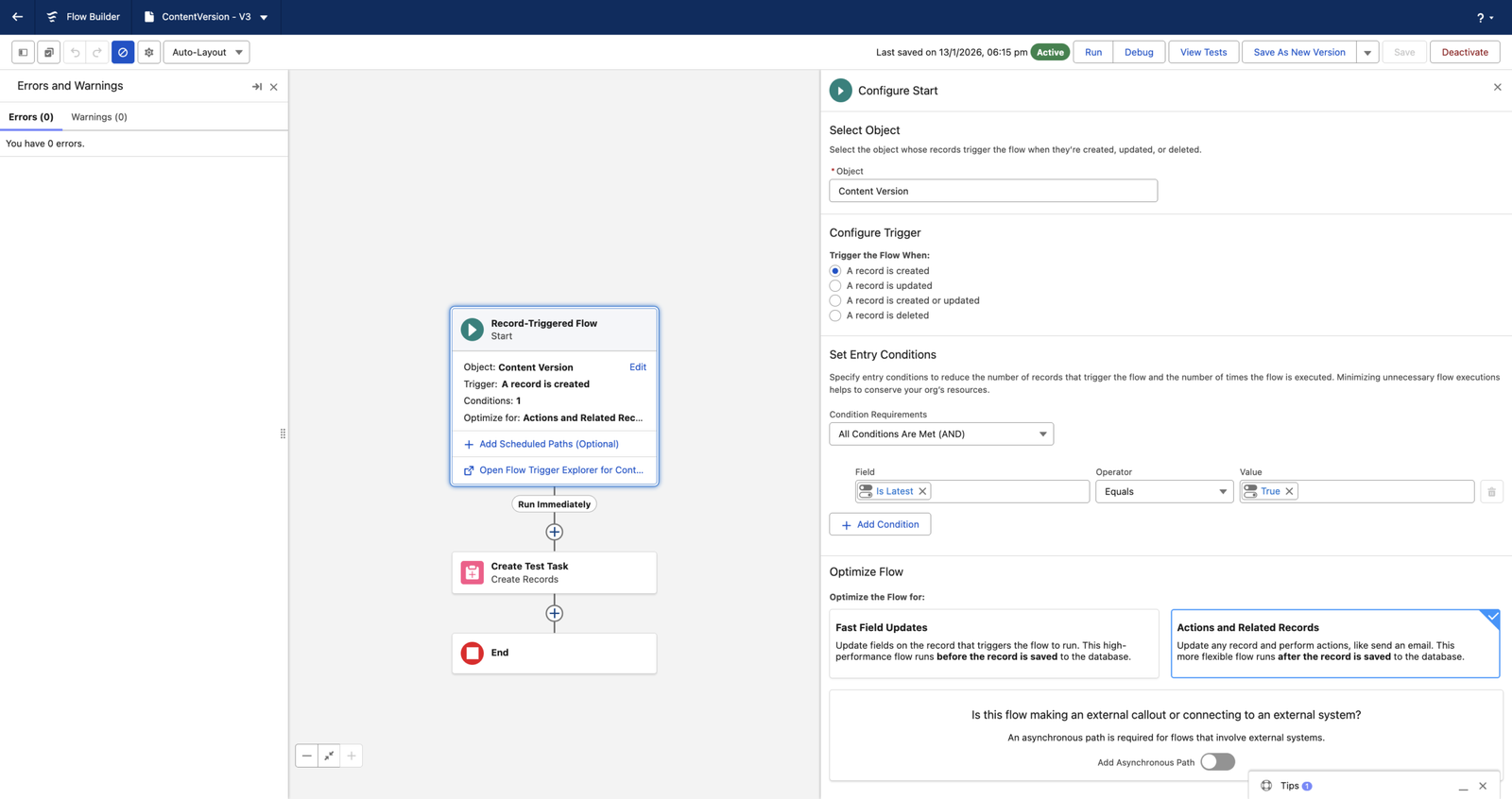
Start
- Object: ContentVersion
- Trigger: A record is created
- Entry condition: IsLatest equals True
- Optimize for: Actions and Related Records (After Save)
Action: Create Records
- Object: Task
- Subject: ContentVersionflowfired
- Status: Not Started
- Priority: High
Again, no complexity. Just a clean trigger and one action.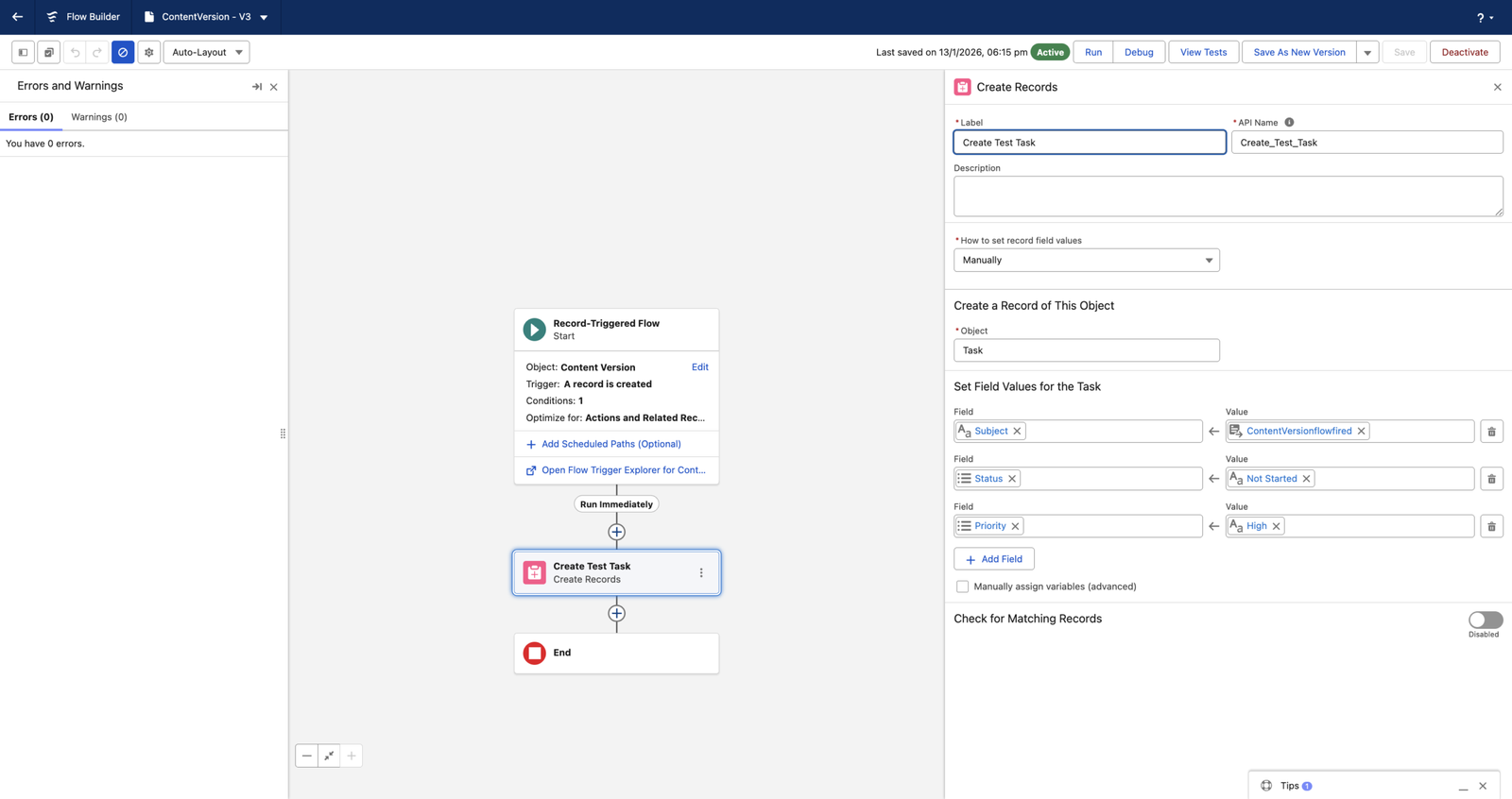
Why IsLatest = True matters?
When Salesforce creates ContentVersion records, older versions can still exist. The IsLatest condition ensures your flow runs only for the active version of the file.
What happens when you test it
- Upload a new version of the file → the flow creates a Task
This flow runs every time, which is exactly what ContentVersion is designed for.


When to use ContentDocument and ContentVersion
Use ContentDocument when:
- You care about the first time a file exists
- You want one-time file creation logic
- You’re tracking file lifecycle events
Use ContentVersion when:
- You care about every upload
- You need version-level control
- You want consistent automation for replacements and updates
In real projects, ContentVersion is usually the workhorse.
FAQs
1. What is the main difference between ContentDocument and ContentVersion?
Salesforce creates ContentDocument once when a file first enters the system, and it creates ContentVersion every time a user uploads or replaces that file.
2. When should I use ContentDocument in a record-triggered Flow?
Use ContentDocument when you want your automation to run only the first time a user uploads a file.
Also Read – Top Flow Features in Salesforce Spring ’26 Release
Conclusion
Spring ’26 removes a long-standing gap in Salesforce automation. Files can now trigger Flows directly, without writing Apex. Once you understand how ContentDocument and ContentVersion behave, the rest becomes straightforward.
Salesforce creates each object at a different point, and understanding that timing makes all the difference. ContentDocument helps when you care about the file itself. ContentVersion helps when you care about uploads and changes. Start with small flows, test them by uploading files, and build from there. With that approach, file automation becomes predictable and easy to maintain.
Get a complete Roadmap to Learn Salesforce Admin and Development👇