

In this blog, we’ll explore the Top Flow Features in the Salesforce Spring ’26 release, their practical applications, and how they enhance user experiences. This release focuses on improving the usability, efficiency, and capabilities of Salesforce flows.
Salesforce releases are major updates that include new features, improvements, and fixes designed to enhance the platform. They happen three times a year: Spring, Summer, and Winter.
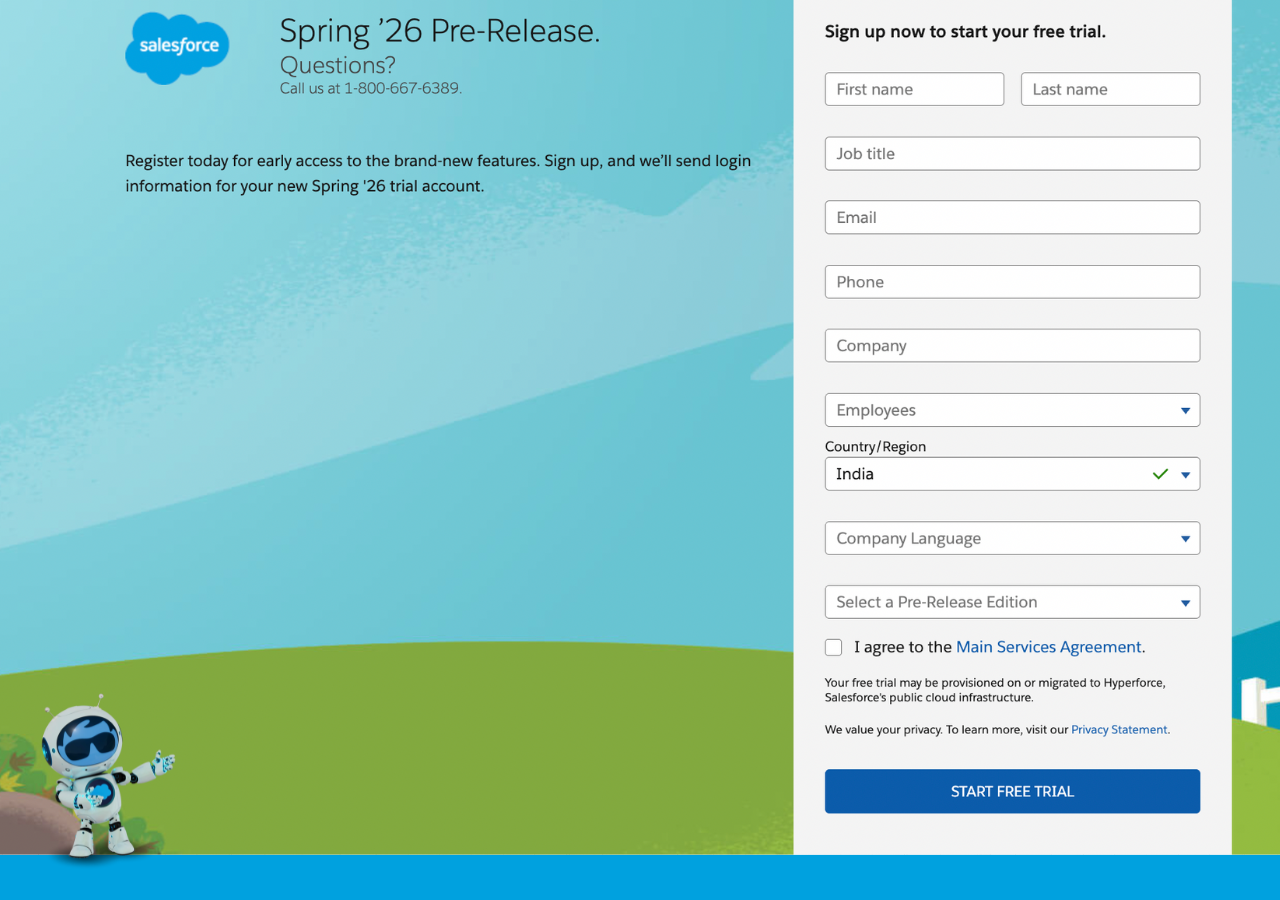
The pre-release org for the Salesforce Spring ’26 release is now available. You can sign up and explore all the new Flow features with hands-on practice by clicking here
1. Message Screen Component on Screen element
The Message Screen Component has been introduced in the Salesforce Spring ’26 release for screen flows. It lets you display alerts like Info, Error, Warning, and Success directly on the screen.
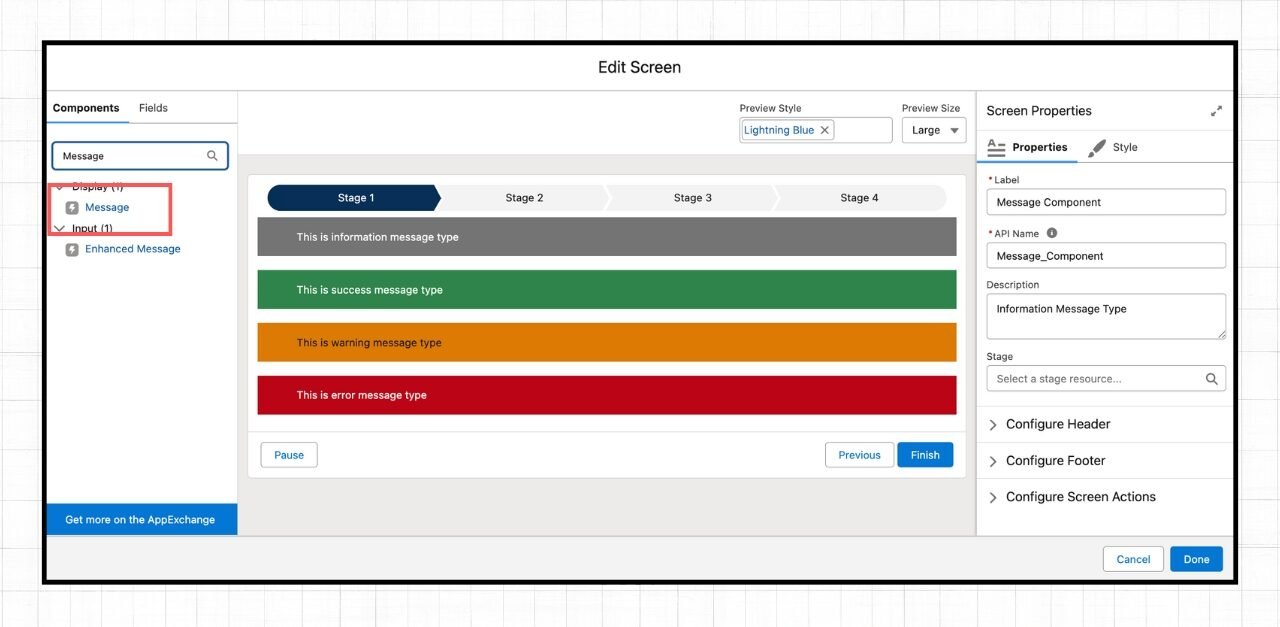
At the moment, it supports only plain text and does not allow rich text or hyperlinks.
2. Expand and collapse the Decision and Loop element
With the Spring ’26 release, Salesforce now lets you expand and collapse Decision and Loop elements in flows, making it easier to navigate and manage complex flow logic.

3. Custom styling options for the Screens in Flow Builder
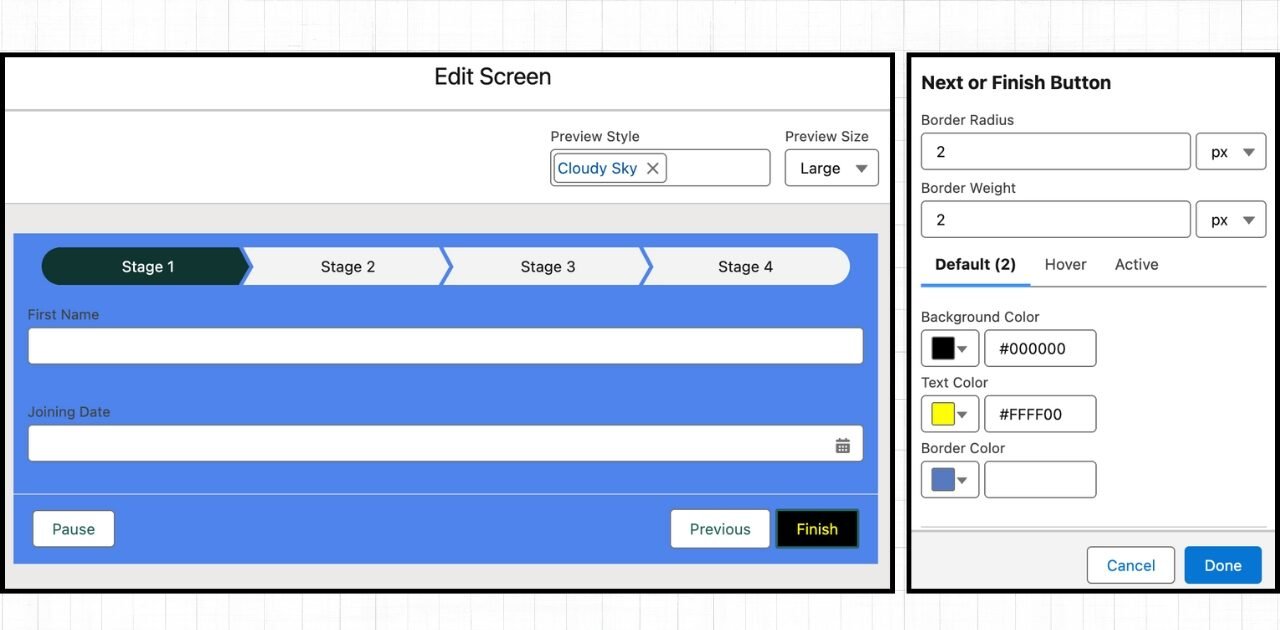
Screen flows now get new styling options. You can change the background, border colour, border radius, and even the font type, size, and colour.
You can also modify the shape of the Next, Previous, and Pause buttons and set different styles for when users hover over or click them.
4. Content Document and Content Version objects are now supported
You can now create Record-Triggered Flows on Content Document and Content Version objects. It is a feature for users who do not have much experience with Salesforce Apex.

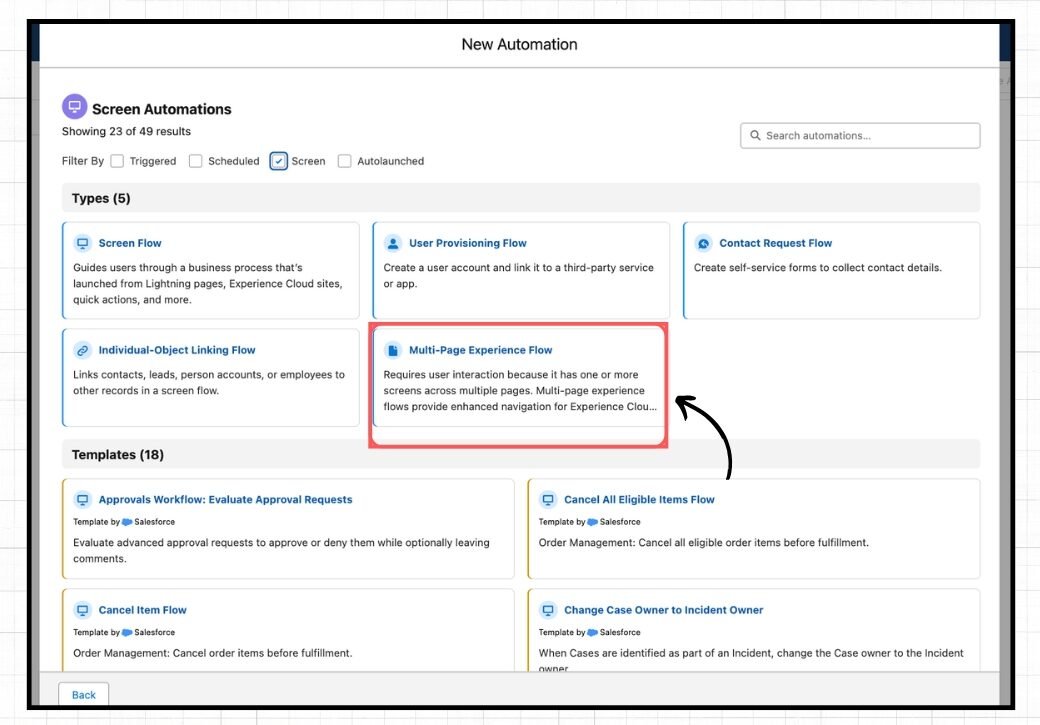
5. New Flow type
Salesforce is introducing a new Flow type called Multi-page Experience Flow. It lets you break screens across multiple pages, making the flow more interactive and easier to navigate. This is especially useful for creating a smoother user experience in Experience Cloud.
6. Kanban Board for Screen Component
The new Kanban Screen Component introduced in the Spring ’26 Salesforce release lets you add a Kanban Board directly to a screen flow.
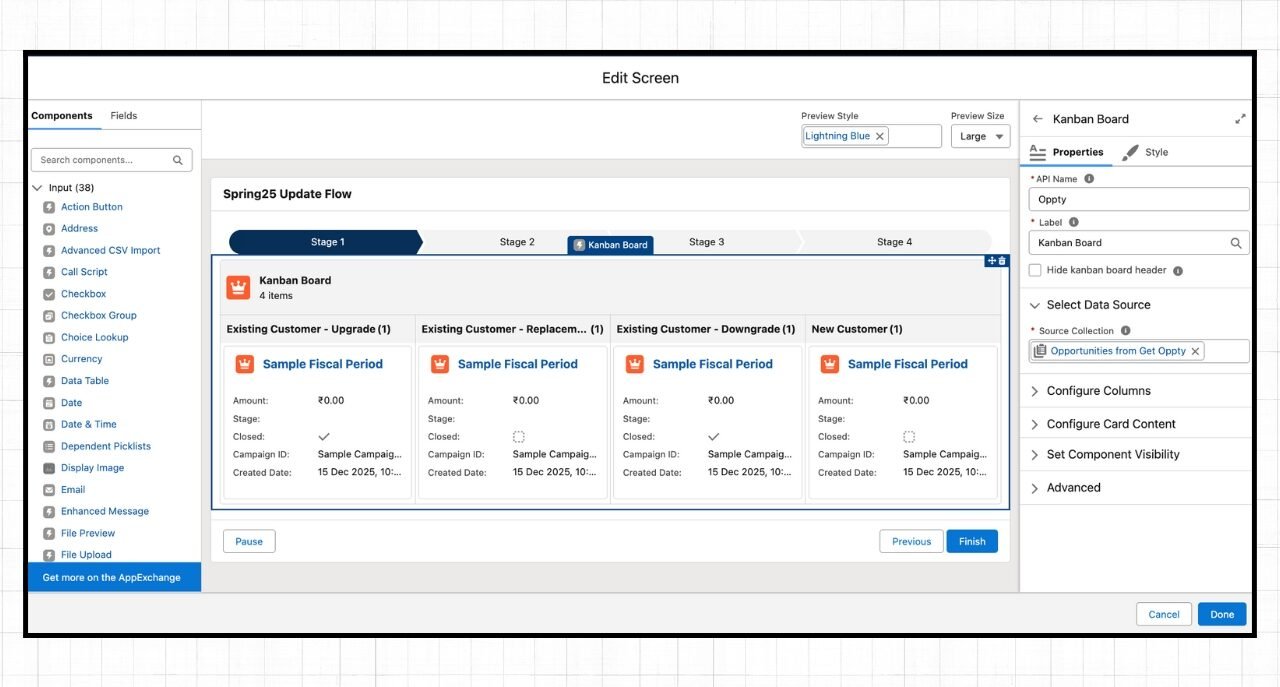
It gives you more control over how Salesforce records are displayed, with support for up to five fields, including both header and footer fields. Since the Kanban Board is read-only, users won’t be able to drag cards across stages while using it.
Looking to learn Salesforce Flow? Check out the complete Salesforce Flow Mastery Course here
7. Flow Logging
From the Salesforce Spring ’26 release, the Automation app now supports Flow Logging with Data 360.
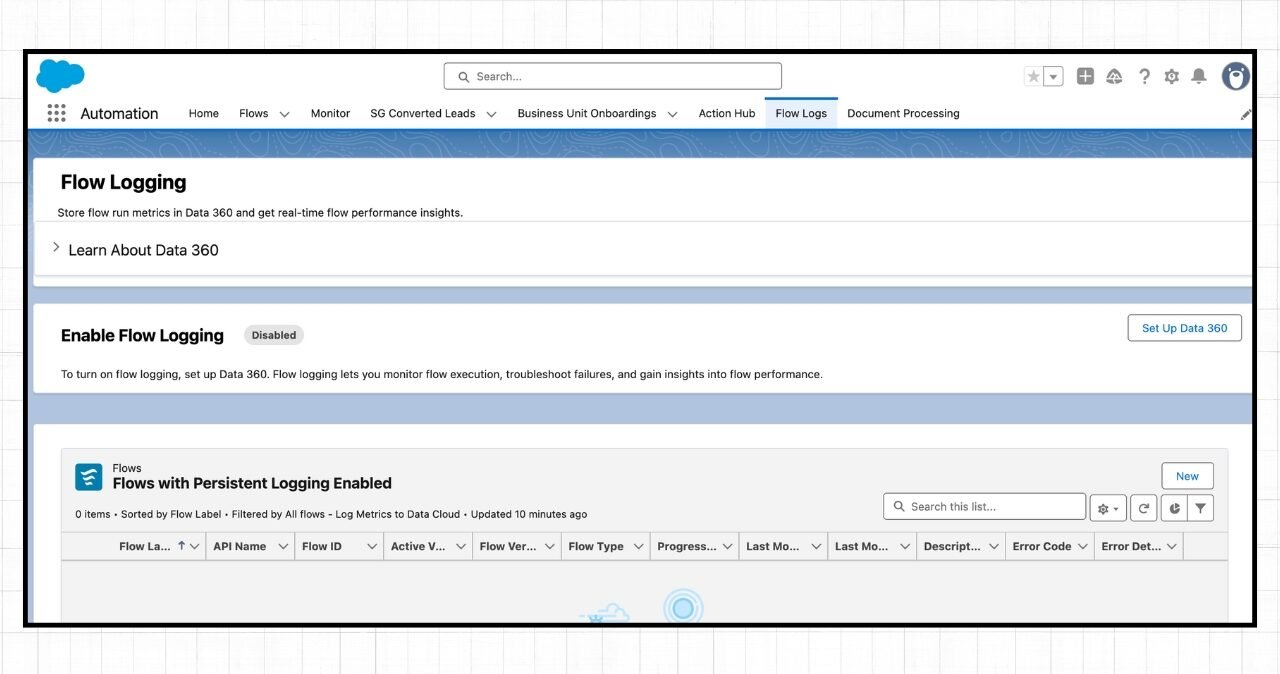
This helps you better understand how your flows are running, monitor their behavior, and identify areas for optimization. It is important to note that using this feature consumes Data Cloud credits.
8. Flow Canvas Scrolling
With the Spring ’26 release, Salesforce has made navigating the Flow canvas much smoother. You can now move around the canvas using your trackpad, arrow keys, mouse wheel, or the scroll bar.
9. Flow Debug Improvements
In the Salesforce Spring ’26 release, Flow Debug has a small but helpful improvement.
When you debug a flow, the test values you enter are now saved in your browser. This means you do not have to re-enter them every time you run the debug again.
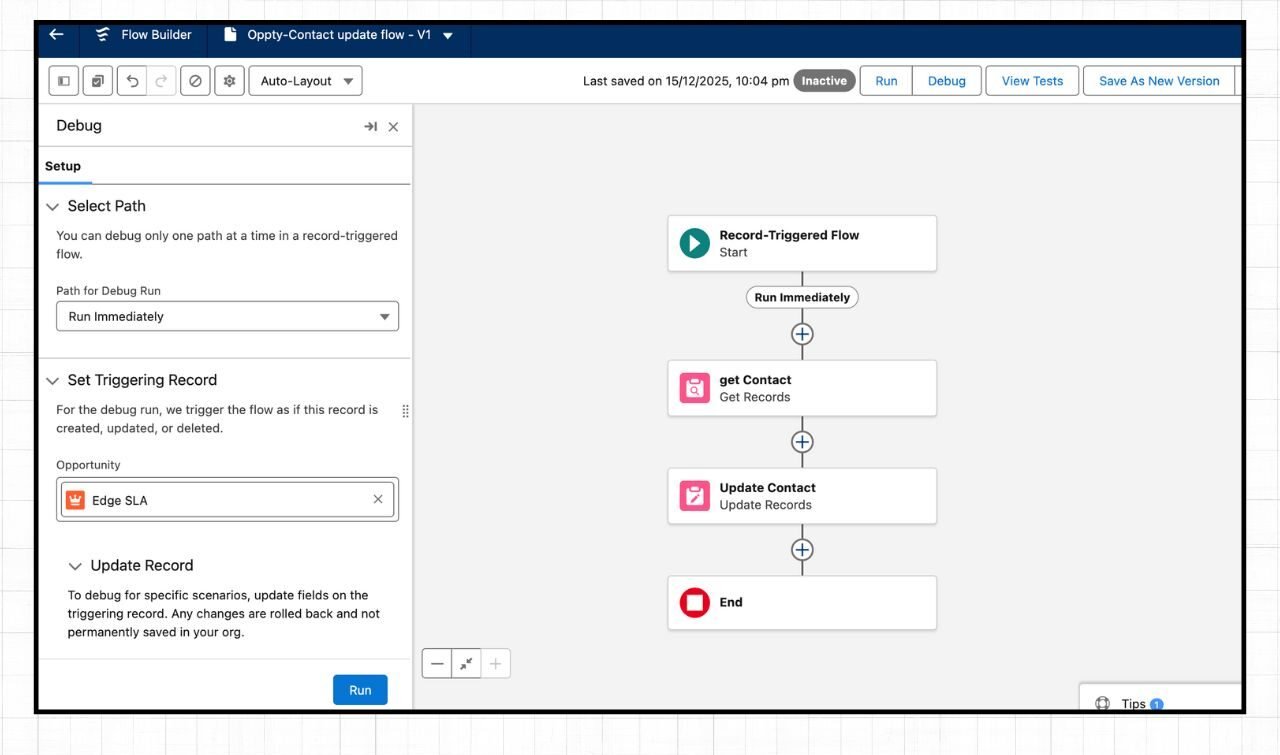
Even if you close and reopen the debug side panel, the values stay the same. This update works for both Screen Flows and Record-Triggered Flows.
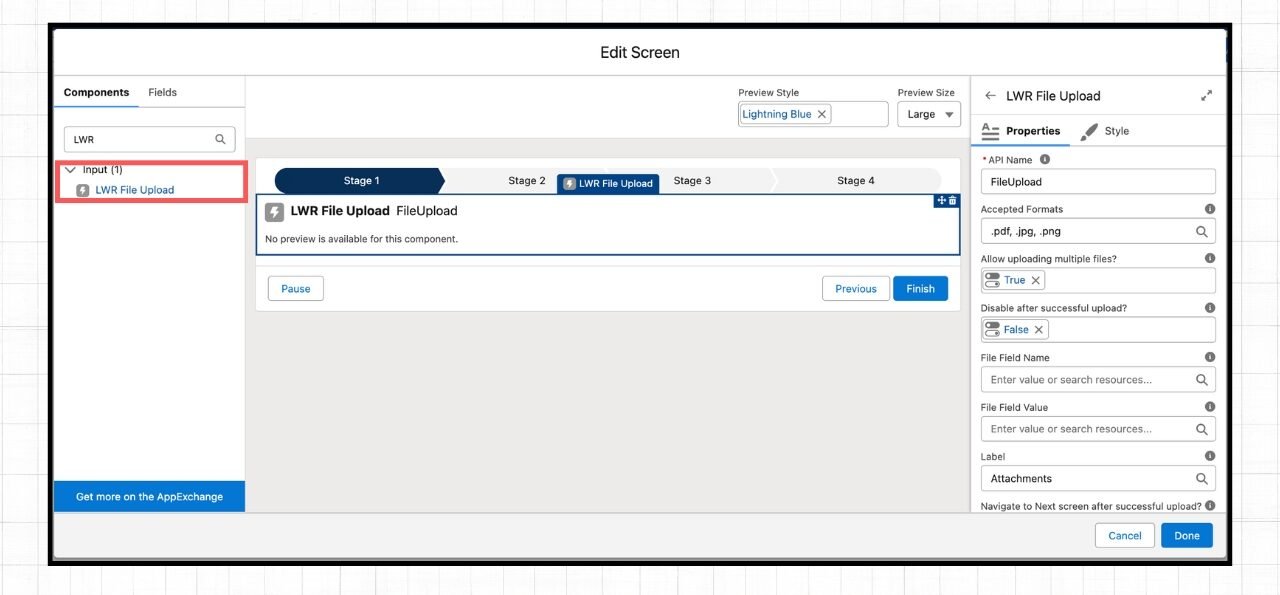
10. LWR File Upload component for Flow
In the Salesforce Spring ’26 release, a new LWR File Upload component has been introduced for Flow.
11. File Preview Screen Component
Salesforce has rolled out a new Screen Flow component that lets you preview files directly within a flow. All you need to do is provide the Content Document ID of the file.


If you want to show more than one file, you can place the File Preview component inside a Repeater and easily display multiple previews.
Also Read – SOQL Scenario-Based Interview Questions and Answers
Conclusion
The Spring ’26 Salesforce release introduces many powerful updates that make life easier for both admins and developers. From improved Screen component styling to the introduction of a new Flow type, these enhancements strengthen Flow’s capabilities while also improving usability. The result is faster configuration, smoother experiences, and less effort spent managing complex processes.