
This blog covers important Omnistudio interview questions and answers in a simple and clear way. It includes more than 30 commonly asked interview questions, including scenario-based questions that are frequently asked in real interviews.
Each question is explained in detail, so you can clearly understand the concepts and feel confident while preparing.
Let’s move forward with Omnistudio Interview Questions and Answers
Question 1: What is Omnistudio? Why is it used?
Answer: Omnistudio is a low-code development tool built on top of Salesforce. It allows you to create user interfaces (UI), automate business processes, and integrate systems – all without writing much code.
It provides powerful tools like:
- OmniScript: To create guided step-by-step forms
- Data Mapper (DataRaptor): To fetch, update, and transform data
- Integration Procedures (IP): To connect and process data from multiple systems
- FlexCards: To display information cleanly and dynamically. OmniStudio is mainly used in industries like Telecom, Healthcare, Insurance, and Public Sector, where companies need fast, scalable, and process-driven applications.
Why is it used?
To reduce coding efforts :
- To build applications faster
- To create guided user experiences
- To integrate multiple systems easily
Example: Suppose a telecom company wants to create a new connection request form. Instead of writing custom code, they can use:
- OmniScript to design the form
- DataRaptor to fetch customer details
- Integration Procedure to validate information
- FlexCards to display plan details
This makes development faster and easier.
Question 2: What are the components (layers) of Omnistudio?
Answer: Omnistudio is divided into three main layers:
-
Digital Experience Layer
-
Service Management Layer
-
Developer Experience Layer
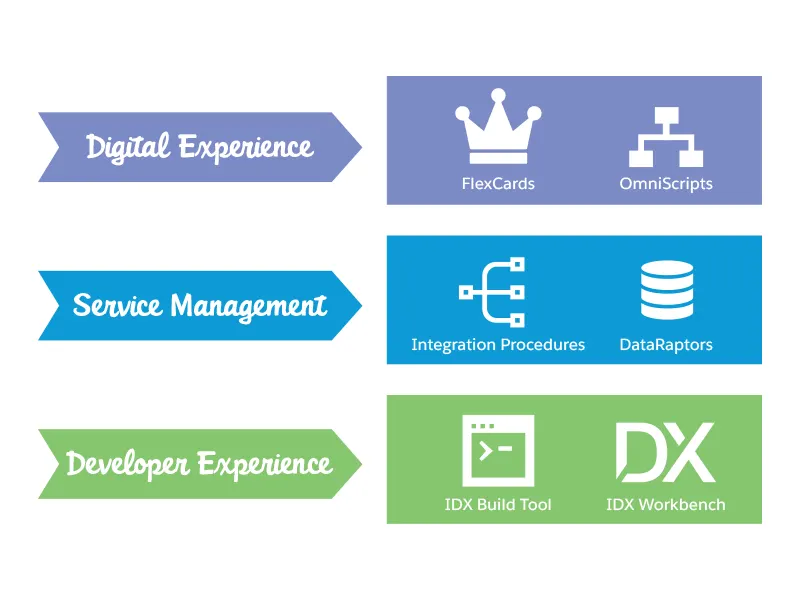
Let’s understand each layer in simple words.
Digital Experience Layer –
This layer is mainly used for building the User Interface (UI).
It includes:
-
OmniScript – Used to create step-by-step guided forms.
-
FlexCards – Used to display information in a dynamic and user-friendly way.
Basically, this layer handles what the user sees and interacts with.
Example:
- If you are building a loan application form where users enter their details step by step, you would use OmniScript.
- If you want to show customer account details in a card format, you would use FlexCards.
Service Management Layer
This layer is used when you want to perform operations on data.
It includes:
-
Data Mappers (DataRaptors) – Used to fetch, insert, update, or transform data (DML operations).
-
Integration Procedures (IP) – Used to handle complex service-side processes and integrate multiple systems.
In simple terms, this layer handles data processing and backend logic.
Example:
If you need to:
-
Fetch customer data → Use Data Mapper
-
Call multiple systems and combine responses → Use Integration Procedure
Developer Experience Layer
- This layer is used for the deployment and management of Omnistudio components between different Salesforce orgs.
- It helps developers move components (like OmniScripts, FlexCards, and Data Mappers) from one environment to another (e.g., Sandbox to Production).
Question 3: Explain Data Mapper and its types
Answer: Data Mapper comes under the Service Management layer of Omnistudio. Previously, it was known as DataRaptor.
Data Mapper is used to perform data-related operations such as:
- Fetching records (similar to SOQL)
- Inserting records
- Updating records
- Transforming data between different formats
In simple words, whenever you need to work with Salesforce data, you use Data Mapper.
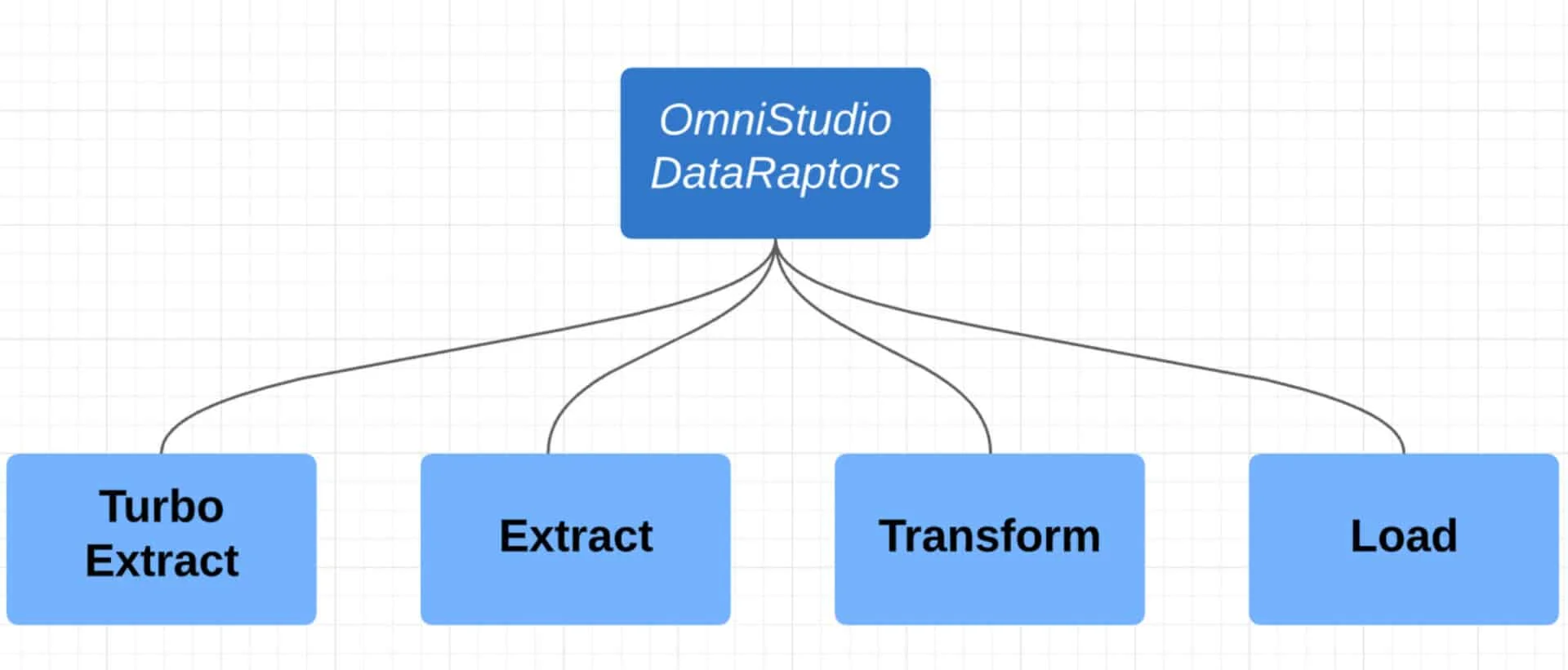
Types of Data Mapper
There are mainly three types:
Turbo Extract
- Used to fetch data from a single object.
- Very simple and faster compared to other types.
- Easy to configure.
Use this when you only need data from one object.
Extract DataMapper
- Used to fetch data from multiple objects.
- Supports relationships between objects.
- More flexible than Turbo Extract.
Use this when you need related data from multiple objects.
Load DataMapper
- Used to insert new records or update existing records.
- Performs DML operations.
Use this when you need to save data to Salesforce.
Transform DataMapper
- Used to modify or manipulate data.
- Used when you need to change the format of data.
- It does not directly perform DML operations.
- It helps in converting data from one structure to another.
In simple words, Transform is used when the data format coming in is different from the format you need.
Question 4: What is the difference between Turbo Extract and Extract?
| Feature | Turbo Extract | Extract |
|---|---|---|
| Purpose | Used to fetch data from a single object | Used to fetch data from multiple objects |
| Object Support | Supports only one object | Supports multiple objects with relationships |
| Custom Mapping Tab | Not supported | Supported |
| Formulas | Cannot add formulas | Can add formulas |
| Default Values | Not supported | Supported |
| Speed | Faster performance | Slightly slower compared to Turbo Extract |
| Complexity | Simple and easy to configure | More flexible and powerful |
In Simple Words
- Use Turbo Extract when you only need data from one object and want better performance.
- Use Extract when you need related data from multiple objects and require custom mappings or formulas.
Question 5: Can we extract related object data using Turbo Extract?
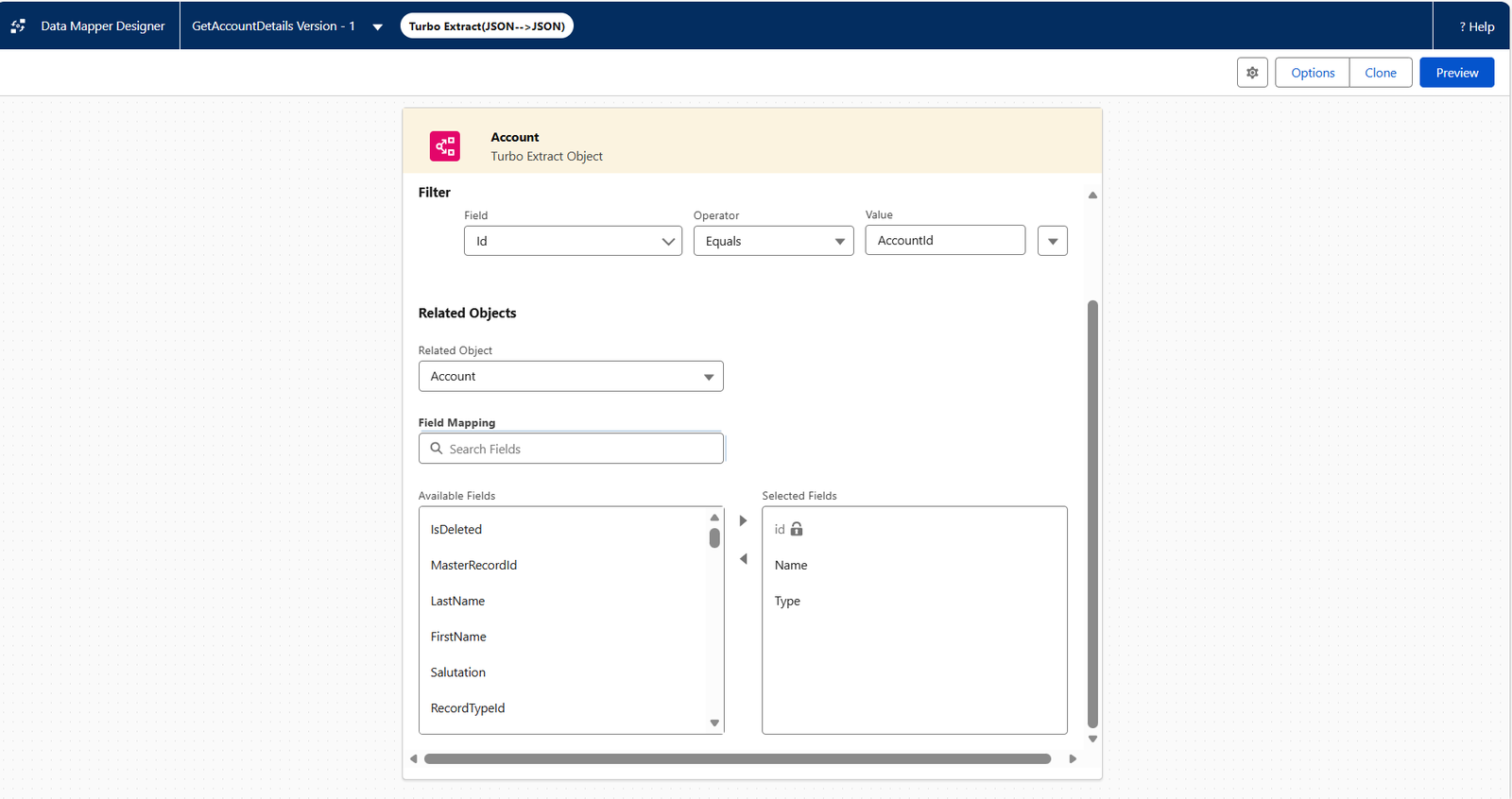
Answer: Yes, it is possible – but only from parent objects.
Turbo Extract mainly works with a single object, but it allows you to fetch related data from its parent object using lookup or master-detail relationships.
However, you cannot fetch child object records (like related lists) using Turbo Extract. For that, you must use Extract Data Mapper.
Example
Suppose you are extracting data from the Contact object:
-
You can fetch related Account details (parent object).
-
You cannot fetch multiple related Cases of that Contact (child records).
Question 6: What is OmniScript?
Answer: OmniScript is a step-by-step guided flow used to collect information from users in a structured way. It allows you to build forms and processes using a drag-and-drop interface, based on business requirements – without writing code.
Key Features
-
Drag-and-drop components
-
No coding required (low-code tool)
-
Step-by-step user guidance
-
Can integrate with Data Mappers and Integration Procedures
-
Supports validations and conditional visibility
Example
Suppose a bank wants to create a Loan Application process:
- Step 1 – Enter Personal Details
- Step 2 – Enter Employment Details
- Step 3 – Upload Documents
- Step 4 – Review and Submit
You can build this entire flow using OmniScript, making it easy for users to complete the process without confusion.
Question 7: What is an Integration Procedure? What is the difference between the Integration Procedure and the Data Mapper?
Answer: An Integration Procedure (IP) is used to execute server-side processes in Omnistudio.
It is mainly used when you need to:
- Call multiple data sources
- Apply complex business logic
- Combine responses from different systems
- Perform conditional processing
Difference Between Integration Procedure and Data Mapper
| Feature | Data Mapper | Integration Procedure |
|---|---|---|
| Purpose | Works mostly with Salesforce data | Handles server-side processes and integrations |
| Data Sources | Mainly Salesforce objects | Multiple data sources (Salesforce + external systems) |
| Logic Handling | Simple logic | Complex logic |
| Loops & Conditions | Not supported | Supported |
| Best For | Small and simple data operations | Complex integrations and processing |
| Performance | Faster for small tasks | Optimized for complex operations |
Question 8: How does OmniScript communicate with the backend?
Answer: OmniScript communicates with the backend using either a Data Mapper or an Integration Procedure, depending on where the data is coming from.
- If the data is from Salesforce, use Data Mapper (for fetching, updating, or inserting records).
- If the data is from an external/third-party system: Used Integration Procedure (for calling APIs, combining multiple sources, or applying complex logic).
Question 9: How to call an external API from Omnistudio?
Answer: In Omnistudio, you can call external APIs using an Integration Procedure (IP) with an HTTP Action. Essentially, the IP acts as a middleware between Salesforce and the third-party system.
Question 10: Can we call an Apex class from an OmniScript?
Answer: Yes, you can call an Apex class from an OmniScript using a Remote Action.
Important Points:
The Apex class must implement one of the following interfaces to work with Omnistudio
- vlocity_cmt.VlocityOpenInterface
- vlocity_cmt.VlocityOpenInterface2
- Callable
This ensures the Apex class follows Omnistudio’s JSON structure, so data can be passed between OmniScript and Salesforce correctly.
Question 11: What is “Execution Condition Formula” in an Integration Procedure?
Answer: The Execution Condition Formula is a powerful feature in an Integration Procedure (IP) that allows an action (like a Data Mapper, HTTP Action, or another step) to run only if a specific condition is met.
How It Works
-
You can set a logical condition using fields, variables, or expressions.
-
If the condition evaluates to true, the action executes.
-
If the condition is false, the action is skipped.
Example
Suppose you have a step to apply a discount only if a customer is older than 10 years:
- Step 1: Check Age>= 10
- Step 2: If true → Apply discount via Data Mapper
- Step 3: If false → Skip the discount step
This prevents unnecessary actions from running and makes your Integration Procedure efficient and dynamic.
Question 12: What is a FlexCard?
Answer: A FlexCard is a component of the Digital Experience layer in Omnistudio.
It is used to display data in a contextual and user-friendly format. FlexCards allow you to present key information from Salesforce or external systems in a compact, visually appealing way.
Key Features
- Part of Digital Experience Layer
-
Shows data in a contextual format
-
Supports built-in controls like:
-
Action buttons (for user interactions)
-
Blocks (for grouping information)
-
Charts (to visualize data)
-
Data tables (for tabular data)
-
And many more
-
-
Enables building a rich, interactive UI without coding
Example
Suppose you want to display customer account details:
- FlexCard can show Account Name, Contact Info, Recent Orders, and Account Status
- Add buttons like “Edit” or “View Orders” for quick actions
- Include a chart showing monthly usage trends
This makes the UI dynamic, interactive, and easy to understand for the user.
Question 13: What data sources are available in a FlexCard?
Answer: FlexCards can pull data from multiple data sources, making them flexible and powerful for displaying information.
Some of the commonly used data sources are:
-
Data Mapper (DataRaptor) – Fetch data from Salesforce objects
-
Integration Procedure (IP) – Fetch data from multiple systems or perform complex processing
-
Custom – Custom logic or JSON data
-
SDK – Pre-built Salesforce components or packages
-
Apex REST – Callouts to external APIs through Apex
-
Remote – Call Apex classes using Remote Action
-
SOQL – Salesforce Object Query Language for querying records
-
SOSL – Salesforce Object Search Language for searching across objects
Question 14: What happens if multiple states match the Condition Visibility in a FlexCard or OmniScript?
Answer: When multiple Condition Visibility states match, the system checks the conditions from top to bottom.
- The first state that meets the condition will be applied/displayed.
- All other matching states below it are ignored
Example
Suppose you have three states in a FlexCard:
- State A: If Account Status = Active
- State B: If Account Status = Active AND Balance > 1000
- State C: If Account Status = Inactive
- If an account is Active with Balance 1500, both State A and B match.
- Only State A (the first matching state) will be displayed because conditions are evaluated top to bottom.
Question 15: How do you pass the data from the parent Flexcard to the child Flexcard?
Question 16: Can we call a FlexCard inside another FlexCard?
Answer: Yes, it is possible to call one FlexCard inside another FlexCard.
How It Works
- A FlexCard can act as a child card within a parent FlexCard.
- This allows you to reuse components and build modular, dynamic UIs.
- Useful when you want to display related data or repeated sections without duplicating effort.
Question 17: What are the best practices for Omnistudio?
Answer: Following best practices in Omnistudio helps make your applications efficient, reusable, and easy to maintain.
Use Child OmniScripts in Parent OmniScripts
- Create child OmniScripts for repetitive sections (like Primary & Secondary Address) and include them in parent scripts.
- Benefit: Update once, reflect everywhere → saves time and effort.
Use Integration Procedures (IP) Whenever Possible
- Handle complex logic, multiple system calls, or data transformations in IPs instead of OmniScript.
- Benefit: Better performance and maintainability.
Minimize Use of Conditional Visibility
- Too many conditional rules can make scripts hard to debug and slow.
- Tip: Use IP or execution conditions for logic instead.
Add Notes and Descriptions
- Document each OmniScript, FlexCard, or IP component.
- Benefit: Easier for team collaboration and future maintenance.
Reuse FlexCards
- Embed FlexCards inside other FlexCards to avoid duplication.
- Benefit: Modular design and consistent UI.
Keep Data Mapping Efficient
- Use Turbo Extract for simple single-object queries and Extract for multiple objects.
- Avoid unnecessary fields or transformations.
- Benefit: Faster data processing.
Use Transform for Data Manipulation
- Instead of complex logic in Apex, use Transform steps in Data Mapper or IP to reformat or calculate data.
- Benefit: Reduces custom code and improves performance.
Follow Naming Conventions
- Name OmniScripts, FlexCards, IPs, and Data Mappers meaningfully.
- Example: OS_CreateCustomer, FC_AccountSummary
- Benefit: Makes components easily identifiable in large orgs.
Limit Heavy Loops and Recursion
- Avoid running loops in IPs or Data Mappers if possible.
- Benefit: Improves performance and avoids hitting Salesforce limits.
Question 18: Can we extract metadata settings using Data Mapper?
Answer: Yes, it is possible to extract metadata settings using the Extract Data Mapper.
-
Data Mapper can fetch data not only from Salesforce records but also from metadata objects.
-
This allows you to read configuration or setup data dynamically without hardcoding values.
Question 19: Is it possible to insert data into multiple or related objects using Omnistudio?
Answer: Yes, it is possible to insert or update data into multiple or related objects using the Data Mapper (Load type).
-
Data Mapper (Load) can handle parent-child relationships and insert records into related objects in a single action.
-
This helps automate complex data entry processes without writing Apex code.
Question 20: How to upsert data using Data Mapper (Load)?
Answer: You can upsert data in a Data Mapper (Load) by selecting an Upsert Key on the field you want to use to match existing records.
Upsert means:
- If a record exists (matches the Upsert Key) → it will be updated
- If a record does not exist → it will be inserted
Question 21: Can we delete records using Data Mapper?
Answer: No, Data Mapper cannot delete records directly.
- Data Mapper is designed for extracting, inserting, updating, or transforming data, but it does not support deletion.
- However, you can delete records using other OmniStudio tools, such as a Delete Action in an Integration Procedure.
Question 22: Is it possible to call Data Mappers in an Apex class?
Answer: Yes, it is possible to call Data Mappers from an Apex class. This allows you to reuse Data Mapper logic in custom Apex code.
How to Call Data Mapper in Apex
You can use the following syntax to call a Data Mapper (DataRaptor) from Apex:
// Import the DataRaptor classes
 Map<String, Object> inputMap = new Map<String, Object>();
 inputMap.put('FieldName', 'Value'); // Execute the Data Mapper by name
 Map<String, Object> response =  VlocityDataPackNamespace.VlocityDataRaptorClassName.runExtract('DataMapperName', inputMap);
- Replace Datamapper Name with the API name of your Data Mapper.
- Input Map contains the input values you want to pass to the Data Mapper.
- Response contains the data returned by the Data Mapper.
Question 23: What action elements are available in an Integration Procedure (IP)?
Answer: Integration Procedures (IP) support several action elements that define what happens at each step of the process. The commonly used action elements are:
| Action Element | Purpose |
|---|---|
| Data Mapper (DataRaptor) | Extract, Load, or Transform Salesforce data |
| Integration Procedure (IP) | Call another IP as a sub-process |
| Remote Action | Call an Apex class |
| Response Action | Send data back to the calling OmniScript or FlexCard |
| Set Values | Assign or modify values in variables or response JSON |
| Set Error | Throw a custom error message when conditions are not met |
| Delete Action | Delete Salesforce records based on conditions |
Question 24: How to conditionally run a step in an Integration Procedure (IP)?
Answer: You can conditionally run a step in an Integration Procedure by using the Execution Condition Formula.
- This formula allows the step to execute only if certain conditions are met.
- If the condition evaluates to true, the step runs.
- If it evaluates to false, the step is skipped.
Question 25: Is it possible to call an Integration Procedure (IP) from another IP?
Answer: Yes, it is possible to call one Integration Procedure from another Integration Procedure.
- This is useful for modularizing processes and reusing logic.
- The called IP can return data or perform actions independently, which the parent IP can use in its flow.
Scenario-Based Questions
Question 26: An external API returns 500 products. You only want to display products that are in stock and category “Electronics” on a FlexCard. Where do you do this filtering?
Answer: I would filter the data in the Integration Procedure using a List Action.
- Fetching all 500 records and filtering on the FlexCard would slow down the browser.
- Using the List Action filter, only the relevant “Electronics” products in stock are sent to the UI.
Question 27: You have a 5-step OmniScript. On step 1, you fetch the account details, and on step 4, you need the same details again. Do you call the Data Mapper action twice?
Answer: No. Once the data is fetched in step 1, it is stored in the OmniScript Data JSON. You can reference it in step 4 using the node name (e.g., %AccountDetails:Phone%)
Question 28: Data Mapper works in the preview tab but not in the live OmniScript. Why?
Answer: Possible reasons:
- Input Mapping: The key sent from OmniScript doesn’t match the Data Mapper input parameter.
- Permissions: User profile may not have Read access to the object or Data Mapper.
- ContextId: The ContextId isn’t passed correctly in the script URL
Question 29: What is the “Chain on Step” property in an Integration Procedure?
Answer: It is used to avoid Salesforce governor limits. When checked, it breaks the transaction and starts a new one for that step, resetting limits for long-running processes.
Question 30: A customer wants users to search Contacts in Salesforce. Which element would you use?
Answer: Use the Type Ahead Block. This allows users to search and select Contacts dynamically as they type.
Question 31: A record update operation in OmniStudio fails silently (no error message is displayed). What could be the possible cause, and how would you resolve it?
Answer: Cause: Missing Upsert Key configuration in the Data Mapper (Load).
Ensure the Id field is properly mapped, and the Upsert Key checkbox is checked so the system knows which record to update.
Question 32: How can we pass the current record Id from the Salesforce Lightning page into an OmniScript?
Answer: Use the reserved variable ContextId in the URL or pass the recordId parameter from the Lightning page to the OmniScript access the current record.
Question 33: If I want to get the current user’s details, which global variable can I use?
Answer: Use $Vlocity.UserId to get the current user’s Id.
Question 34: A user reports that a FlexCard is blank, but the data exists in Salesforce. How do you troubleshoot this?
Answer:
- Check the Data Source tab of the FlexCard to ensure data is returning properly.
- Verify the Result JSON Path matches the actual JSON structure.
- Confirm security settings and user permissions allow access to the data.
Question 35: A user wants to show the data in a pop-up model. Is that possible in Omnistudio?
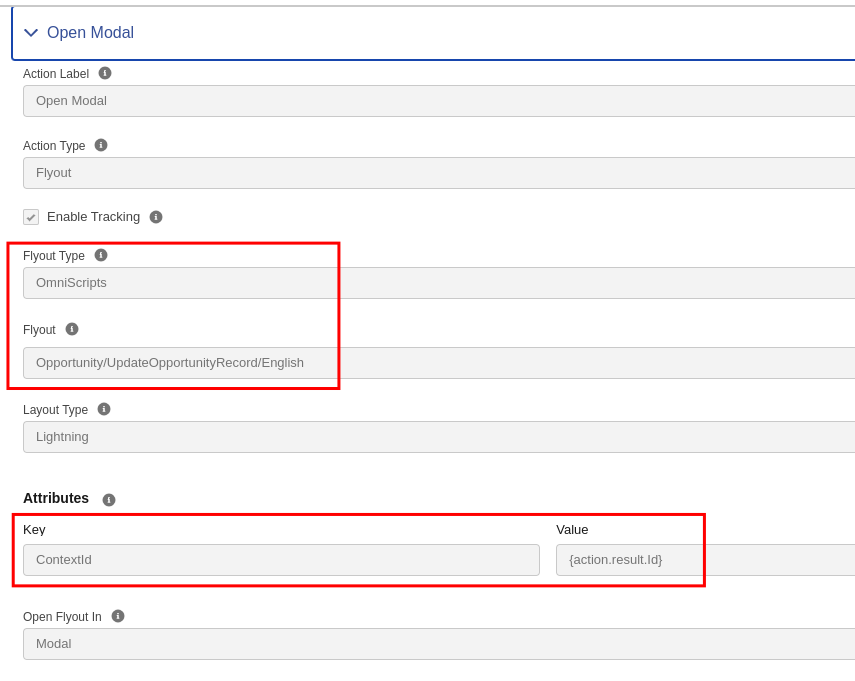
Answer: Yes, it is possible using a FlexCard in Salesforce OmniStudio.
In the FlexCard:
-
Set the Action Type as Flyout.
-
Then select what you want to show inside the pop-up:
-
An OmniScript
-
Another FlexCard
-
Or a Custom LWC
-
When the user clicks the action button, the pop-up (flyout) will open and display the selected component.
Question 36: If I want to use my custom LWC in OmniScript, is that possible?
Answer: Yes, it is possible in Salesforce OmniStudio.
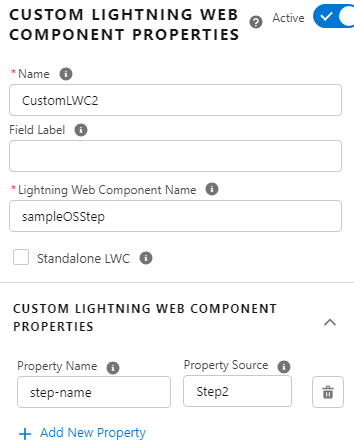
To use a Custom LWC in OmniScript:
-
Add a Custom Lightning Web Component element inside OmniScript.
-
Select the LWC that you created.
-
Make sure your LWC is properly exposed for OmniScript.
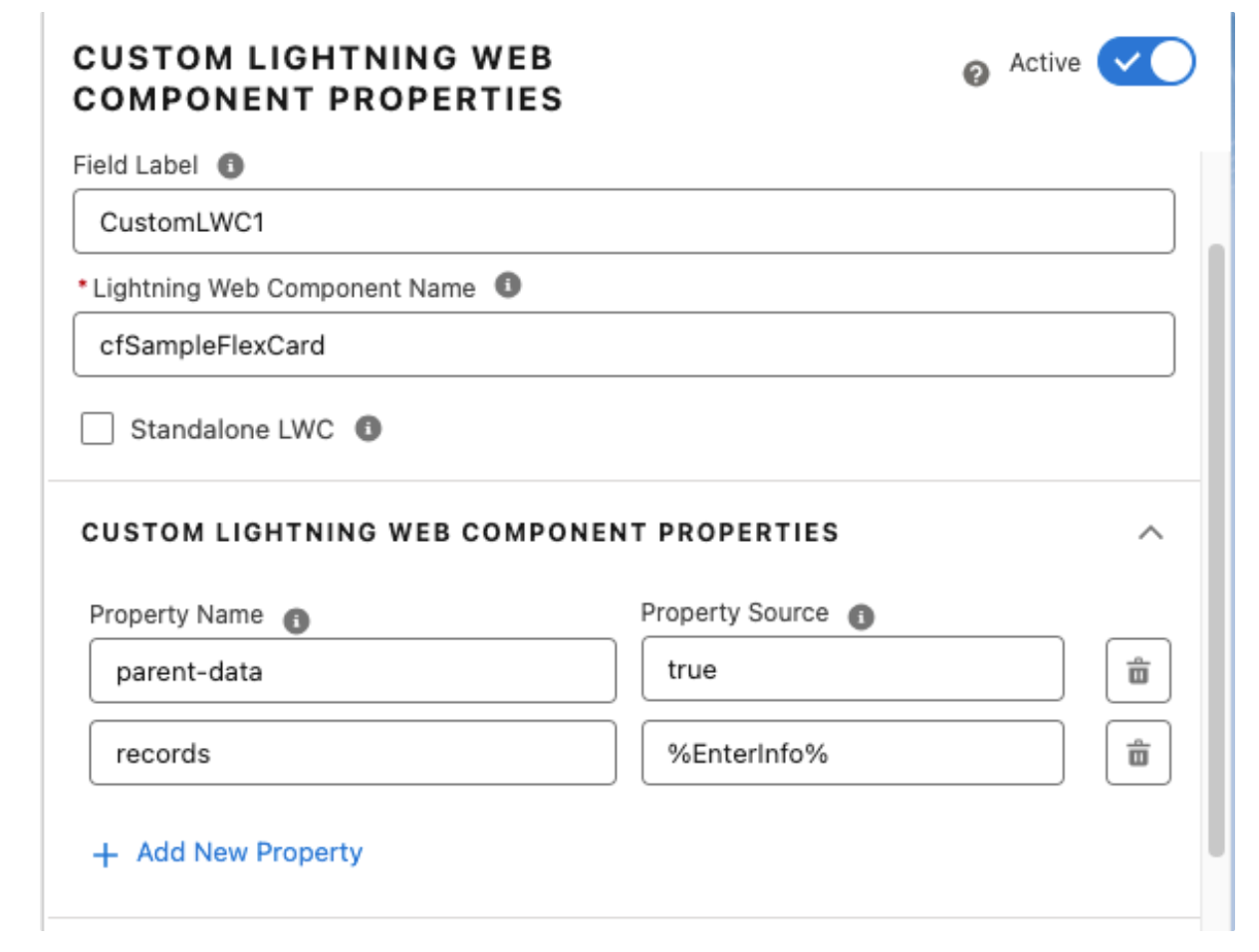
Question 37: How to send data from OmniScript to FlexCard?
Answer: If you want to use a FlexCard inside OmniScript:
-
Enable the OmniScript Support checkbox in the FlexCard.
-
Set Parent Data = true.
-
Provide the Parent Node Name (for example: records).
This allows the FlexCard to receive data from the OmniScript.
Question 38: How to send data from a Parent Card to a Child Card?
Answer: There are two ways:
Using DataNode
-
Pass the entire records/data node to the child card.
-
Useful when you need multiple fields.
Using Attributes
-
Pass specific values using attributes.
{Id} → {Id}
In the child card, you can access it using {Parent.Id}
Also Read – Top Flow Features in Salesforce Spring ’26 Release
Conclusion
Get a complete Roadmap to Learn Salesforce Admin and Development👇